
Overview
Device Allocation is a feature that allows you to allocate devices to activated Licenses. There are 2 different allocation methods depending on the License type:- Time-Based License: Flexible allocation of usage time for multiple devices
- Device-Based License: Allocation of fixed device slots
Each License type has a different allocation method. Please choose the guide that matches your License type.
Time-Based License Allocation
Steps to allocate devices for Time-Based License
1
View the My License table
- Check if your License Key has been activated
Ensure the Time-Based License has been successfully activated before performing allocation.
2
Click on Manage Time Allocation
- Find and click on Manage Time Allocation in the Action column

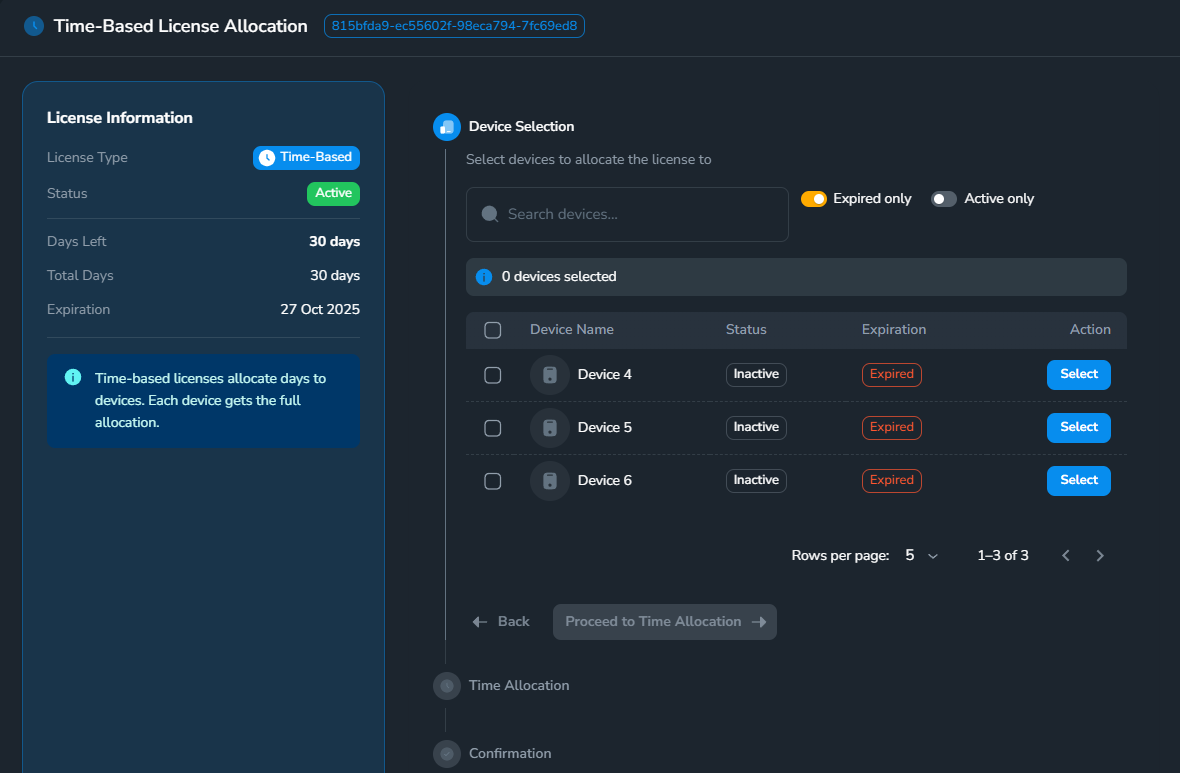
- After clicking, it will display a detailed table of your License Key, where you can check information and activate your devices
3
Activate new devices
- After the device details table appears, look to the right where devices are listed - this is where you select the device you want to activate
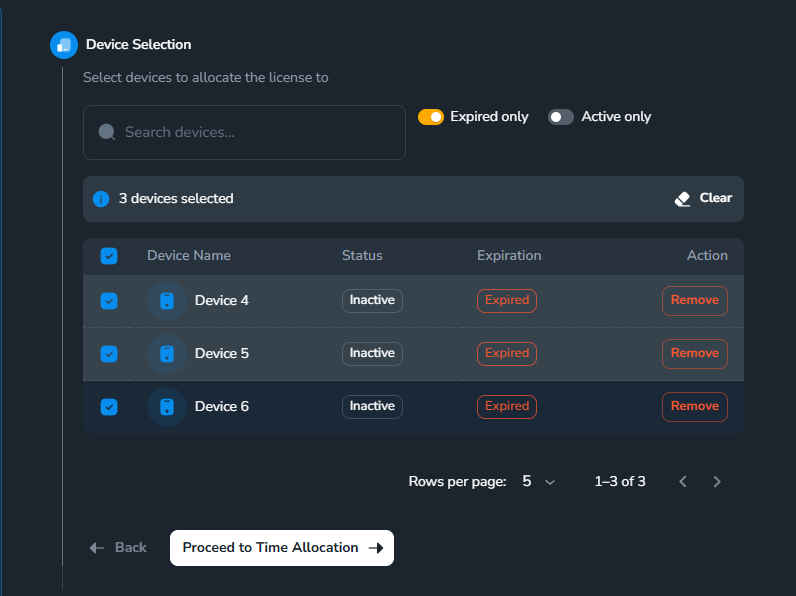
- You can search for your desired device name or click Expired only to find expired devices
- With a License Key, for example, if you have 30 days and want to activate all 3 devices below, find and select the Expired devices, then click Proceed to Time Allocation:
4
Adjust time to match the total devices you want to allocate
- After clicking, it will take you to Time Allocation to divide time for each device you selected.
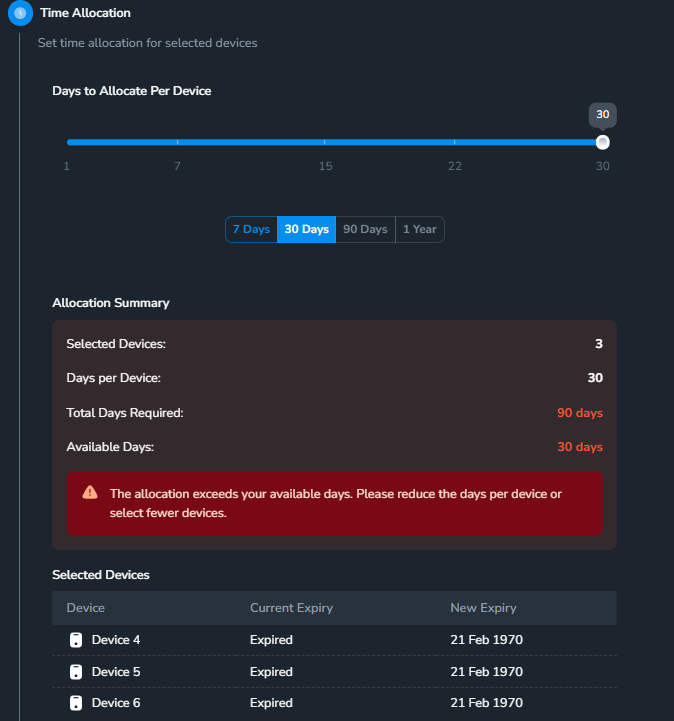
- Currently, I have a 30-day key but want to divide it among 3 devices. That means 10 days per device, so we’ll adjust using the slider to be less than or equal to 10 (depending on your key and selected devices)
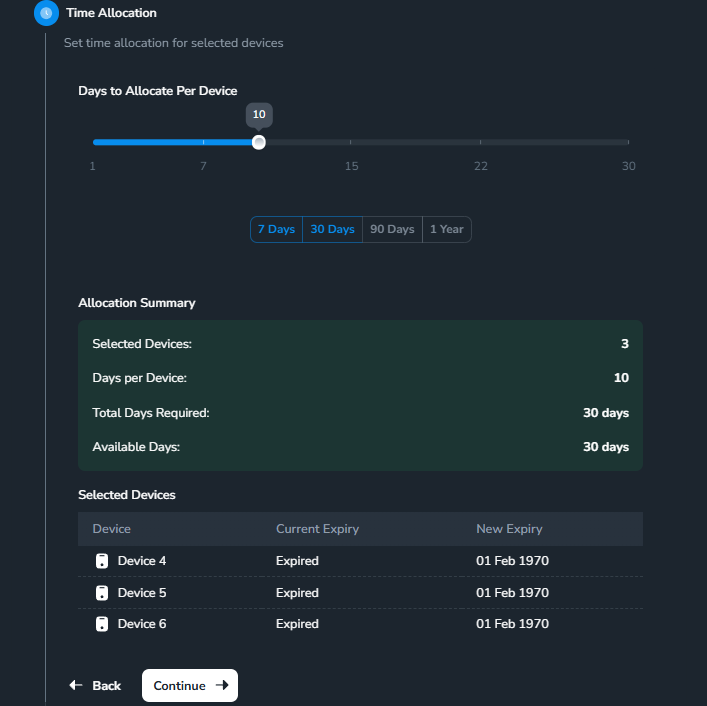
- Click “Continue” to proceed.
5
Confirm device allocation
At this step, just click Allocation License and you’re done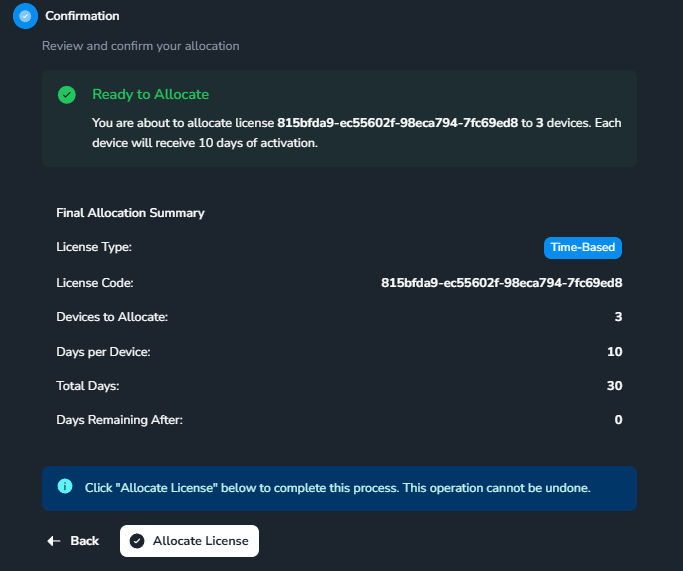
Device-Based License Allocation
Steps to allocate devices for Device-Based License
1
View the My License table
- Check if your License Key has been activated
Ensure the Time-Based License has been successfully activated before performing allocation.
2
Click on Manage Device Allocation
- Find and click on Manage Device Allocation in the Action column

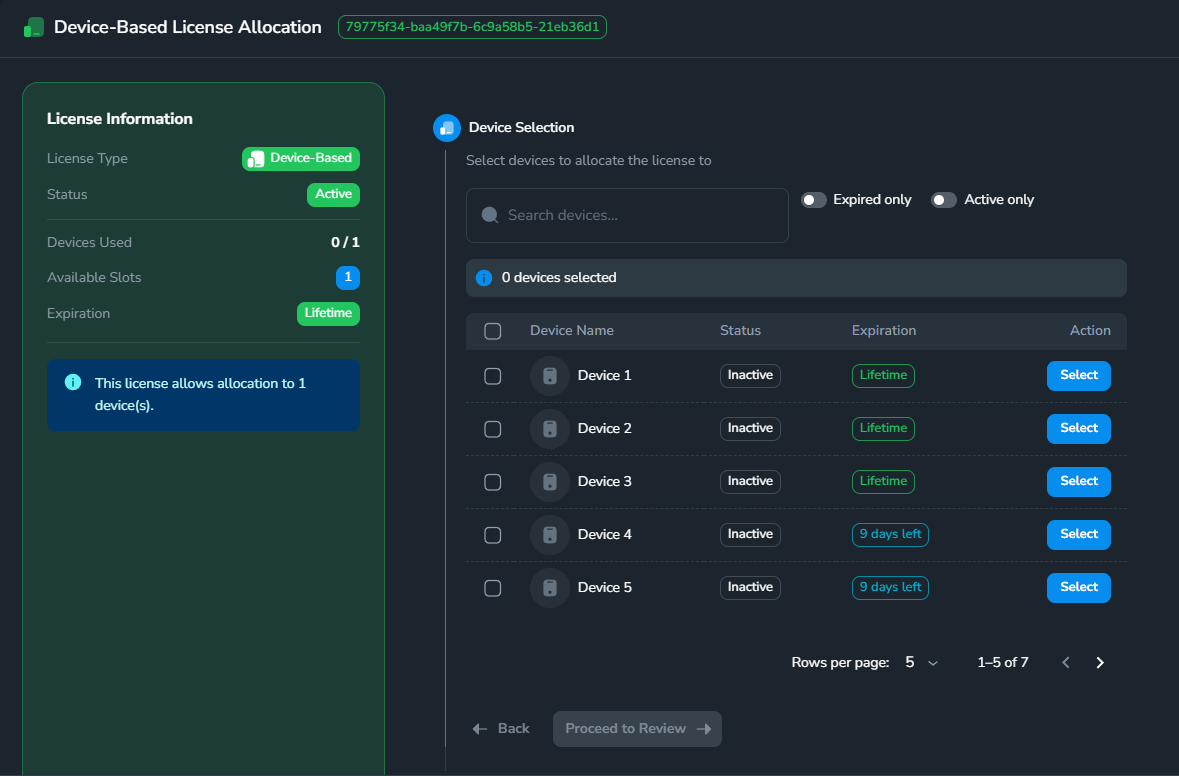
- After clicking, it will display a detailed table of your Device-Based License Key, where you can check information and activate your devices
3
Activate new devices
- After the device details table appears, look to the right where devices are listed - this is where you select the device you want to activate
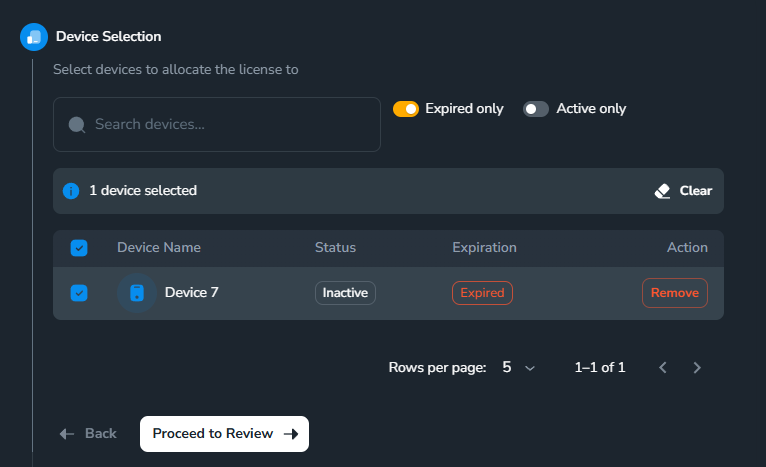
- You can search for your desired device name or click Expired only to find unactivated devices
- With a Device-Based License, you can activate the number of devices according to the slots purchased (check Available Slots on the right), select devices then click Proceed to Device Allocation:
4
Review the devices you will allocate
Review the information you selected as well as the License Key information, then click Continue after confirmation.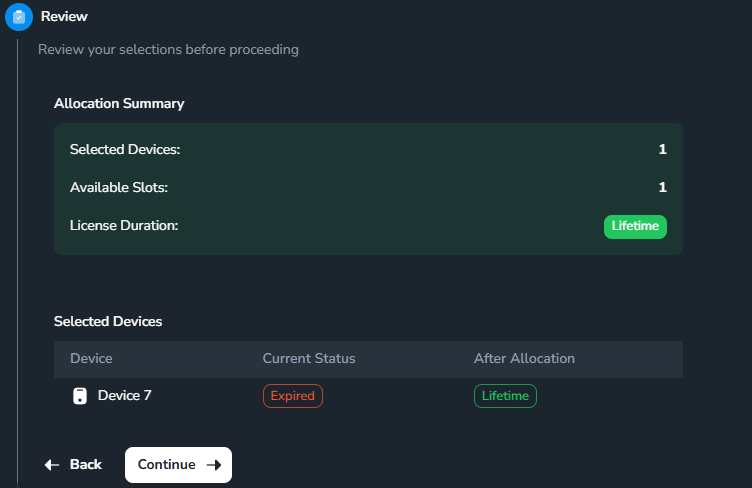
5
Confirm device allocation
At this step, just click Allocation License and you’re done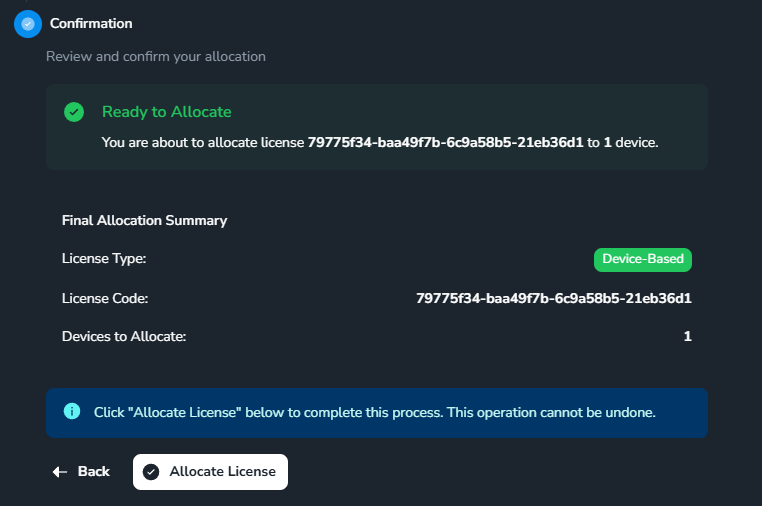
Troubleshooting
Error: Cannot add device
Error: Cannot add device
Possible causes:
- Allocation days exceed remaining days (Time-Based)
- Device slots are full (Device-Based)
- Device is already allocated in another License
- Device ID is invalid
- Check remaining days/slots in the License
- Confirm the device is not being used in another License
- Recheck the Device ID
Error: Cannot edit allocation
Error: Cannot edit allocation
Causes:
- Device is currently in use
- No edit permissions
- License has expired
- Wait for device to stop being used
- Contact admin for permissions
- Check License status
Error: Device not working after allocation
Error: Device not working after allocation
Causes:
- Device has not synced with server
- License not activated on device
- Unstable network connection
- Restart the FarmSync application on the device
- Check internet connection
- Contact support if the problem persists
Additional Information
Best Practices
Effective Management
- Smart allocation: Don’t allocate too many days to one device if unnecessary (Time-Based)
- Regular monitoring: Check remaining days/slots periodically
- Backup allocation: Keep notes of important allocations
Optimization
- Pool management: Keep some reserve days in the pool (Time-Based)
- Slot management: Manage device slots efficiently (Device-Based)
- Device rotation: Rotate devices to maximize License utilization
- Monitoring: Use monitoring features to track usage
Support
If you encounter any issues during device allocation, please:Contact Support
Email the technical support team
FAQ Documentation
View frequently asked questions