
Introduction
Folders are used to organize accounts for Autochange. You’ll create folders to contain new accounts and track completed accounts.Folders page:
https://app.farmsync.cloud/dashboard/autochange/folders/.Create Folder
1
Access the Folders page
You have 2 options: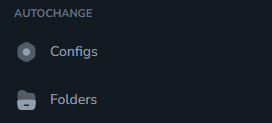
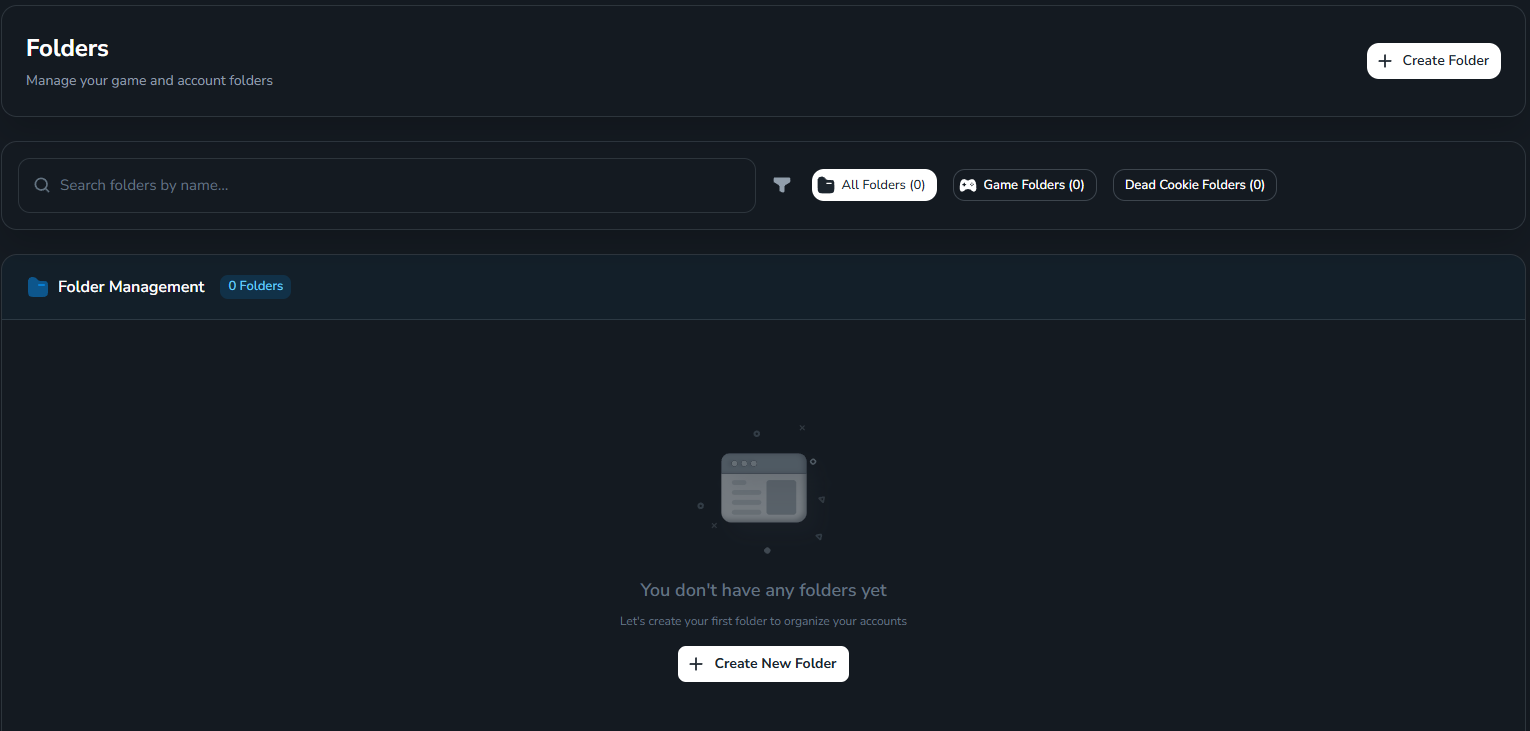
- Open the link:
https://app.farmsync.cloud/dashboard/autochange/folders/ - Or go to Autochange > Folders.
2
Create new folder
If you don’t have any folders yet, click Create Folder.
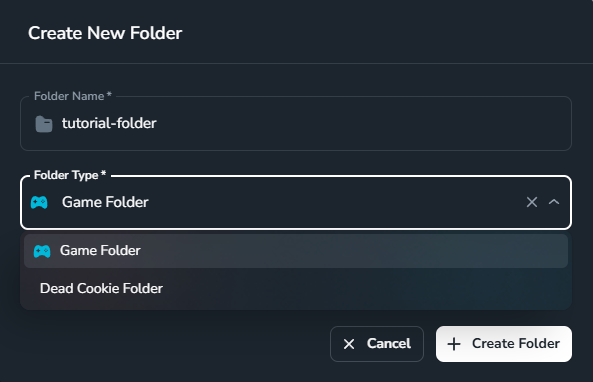
- Game Folder: Folder for active accounts that will be used in the game.
- Dead Cookie Folder: Folder for accounts with expired cookies that need to be refreshed.
3
View and open the newly created folder
After creation, you’ll see the folder list: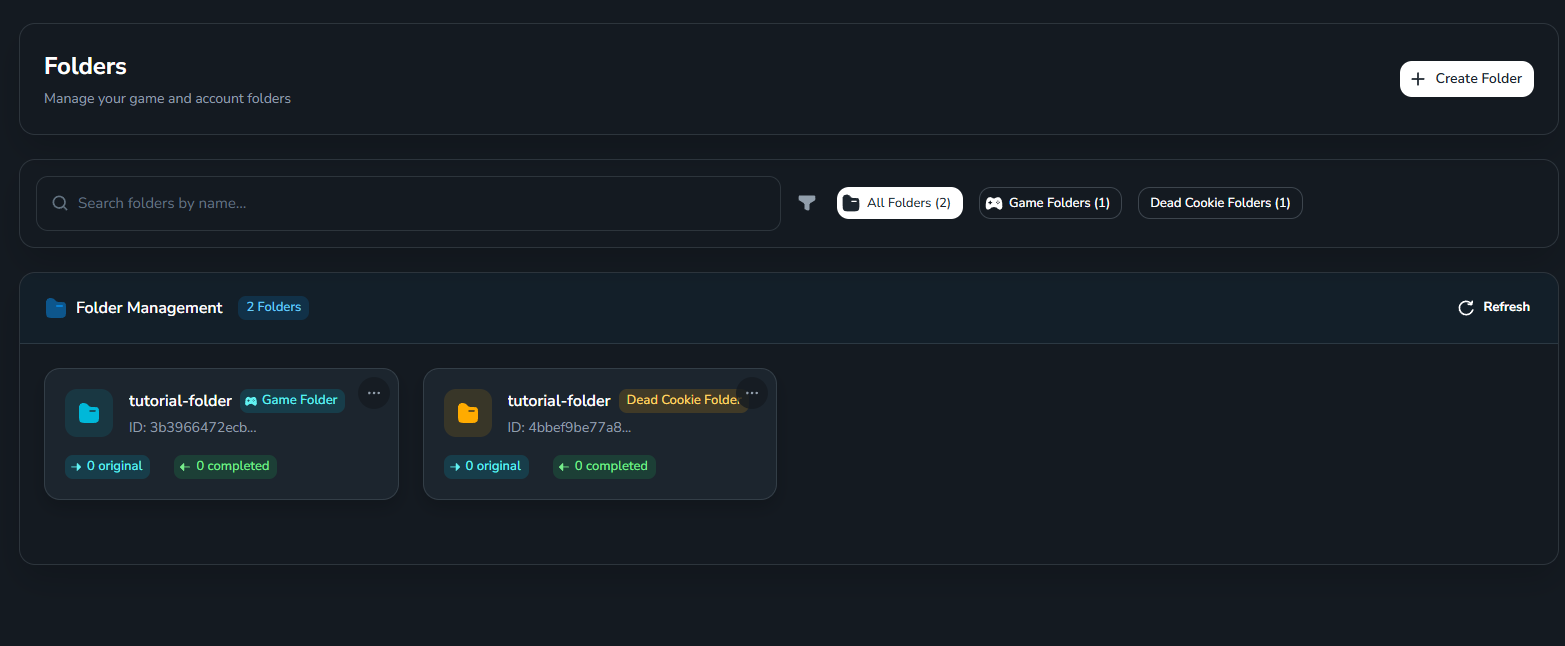
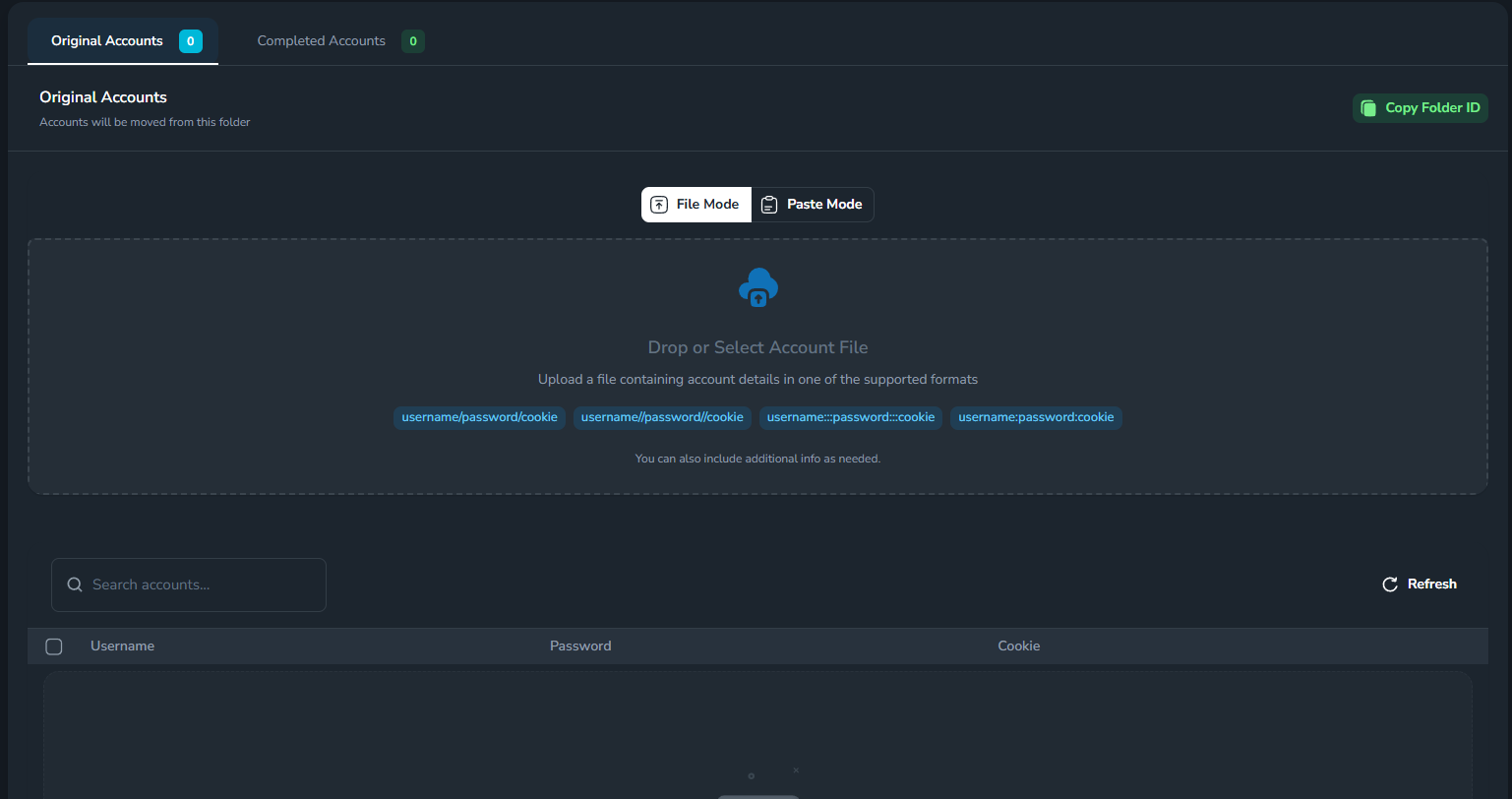
- Original Accounts tab: where you add accounts (Autochange will take accounts from here).
- Completed Accounts tab: where accounts that have met the conditions will be automatically transferred.
You have created and configured a Folder for Autochange.