
Introduction
This page guides you through creating a new Script in FarmSync’s Automation system. You’ll learn how to access the management page, create a script, name it, add content, and save it.You can directly access the Scripts Manager page at
https://app.farmsync.cloud/dashboard/automation/scripts/.Create a New Script
1
Access the Scripts page
You have 2 options: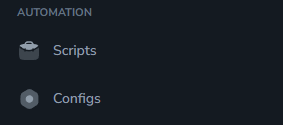
- Open the URL:
https://app.farmsync.cloud/dashboard/automation/scripts/ - Or go to Automation > Scripts as shown in the image below.
2
Scripts Manager page
After accessing, you’ll see the Scripts Manager page.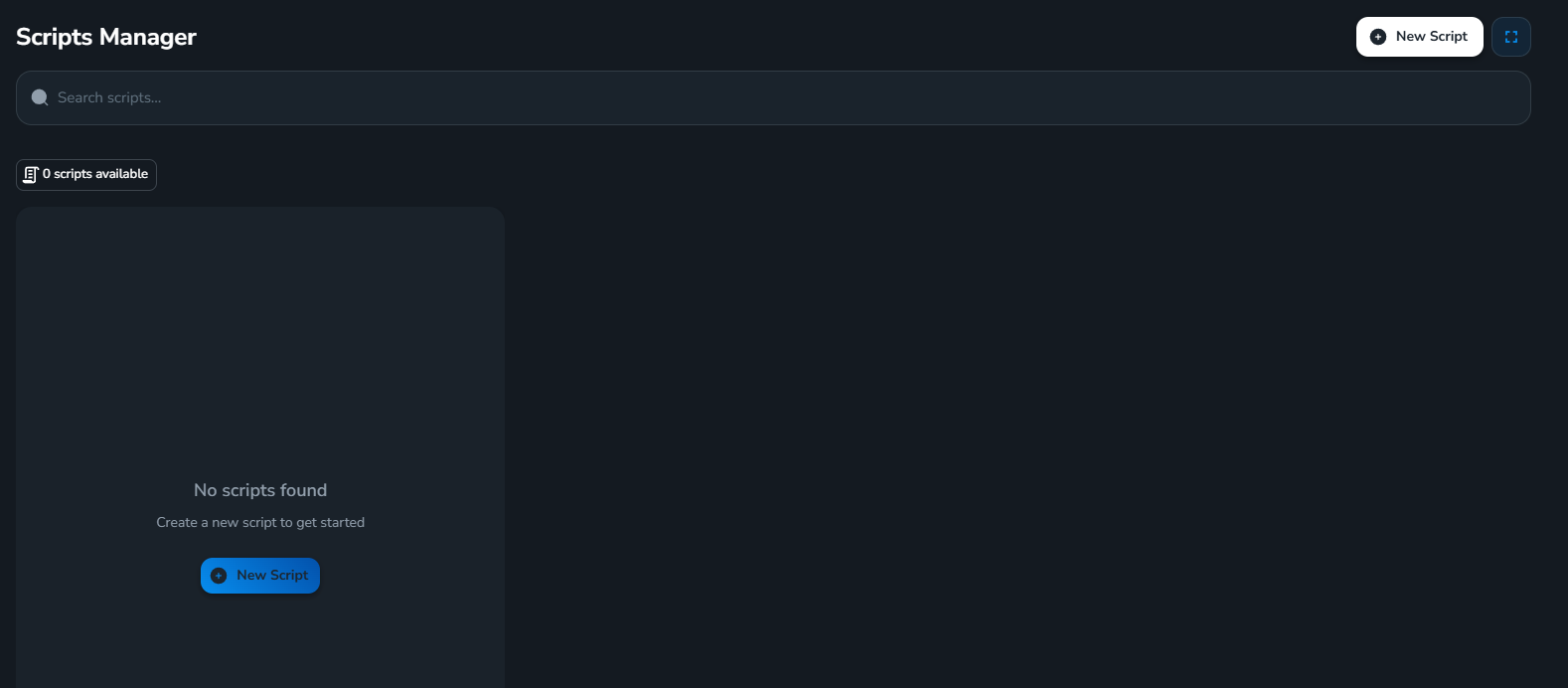
3
Create a new Script
Click the New Script button to start creating.
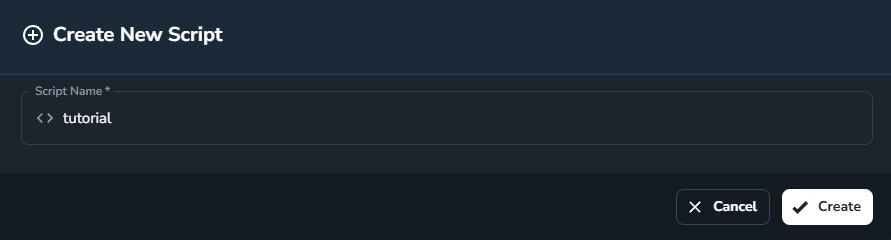
tutorial) then click Create.4
Add content and save
After creation, the interface will display: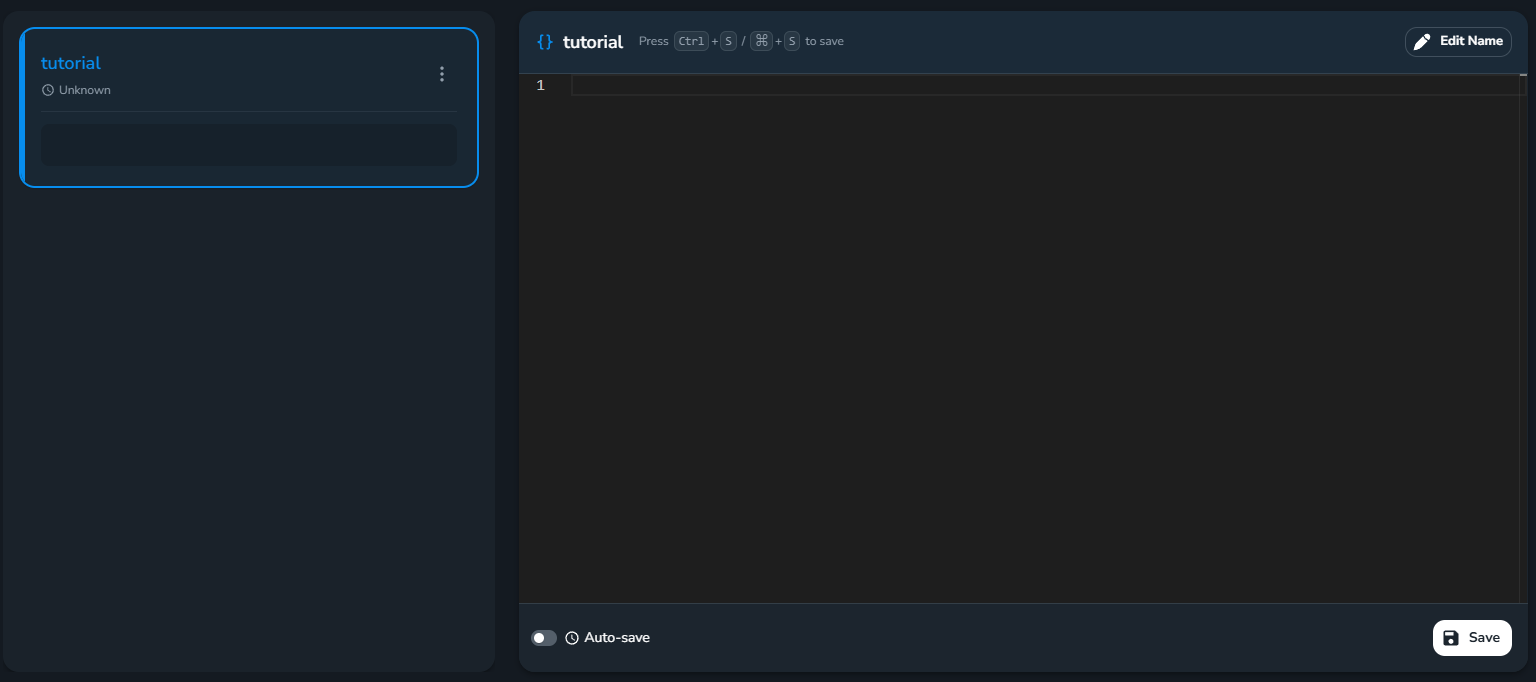
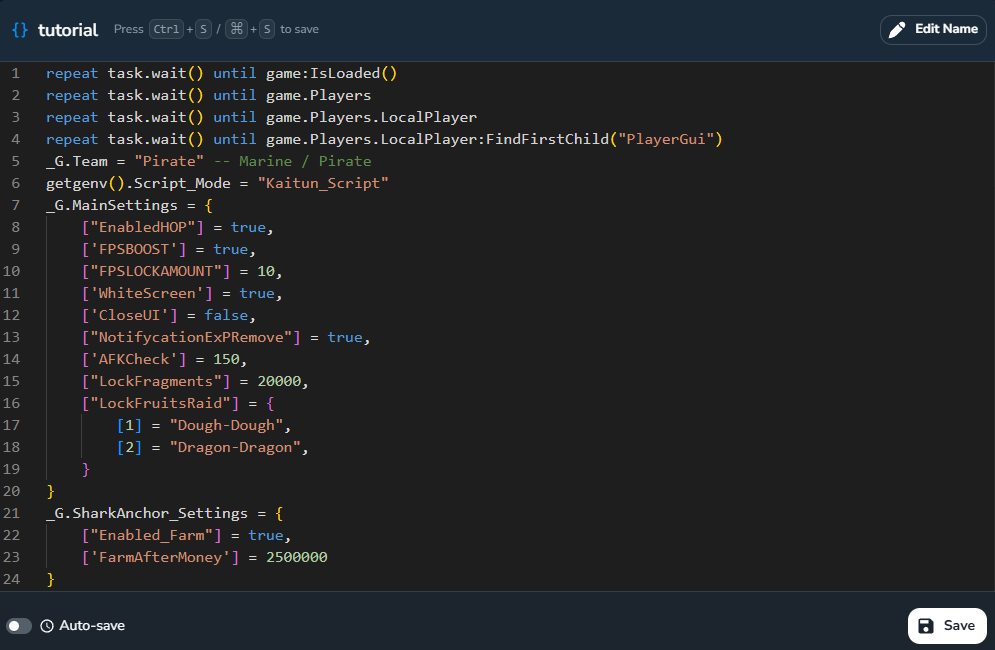
- Left side: list of your scripts (newly created will appear here)
- Right side: script content editing area
You have successfully completed creating a Script.