
Introduction
Auto Change allows automatic account switching when your set conditions are met. Follow these steps to create your first Auto Change Config.You can directly access:
https://app.farmsync.cloud/dashboard/autochange/configs/.Create Auto Change Config
1
Access the Auto Change Configs page
You have 2 options: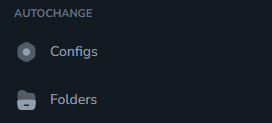
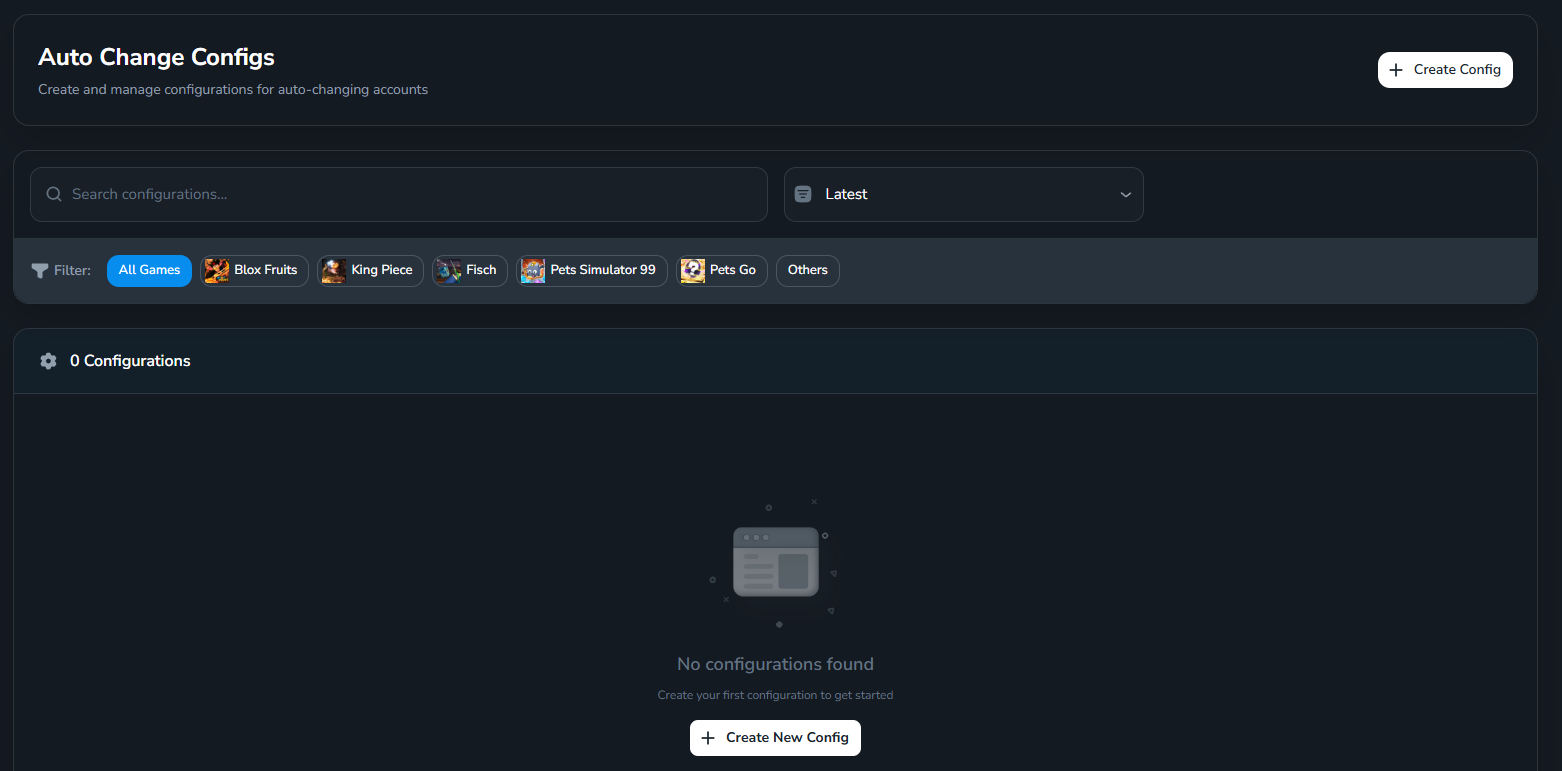
- Open the URL:
https://app.farmsync.cloud/dashboard/autochange/configs/ - Or in the Autochange menu, click Configs as shown below.
2
Create new configuration
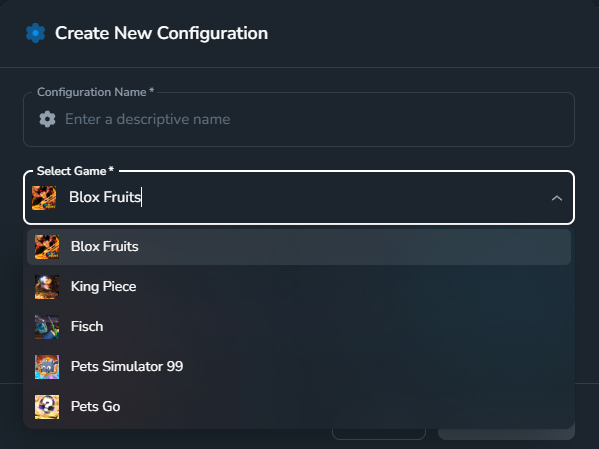
Click Create Config to create a new config.
3
Configuration list and editing
After creation, the configuration will appear in the list.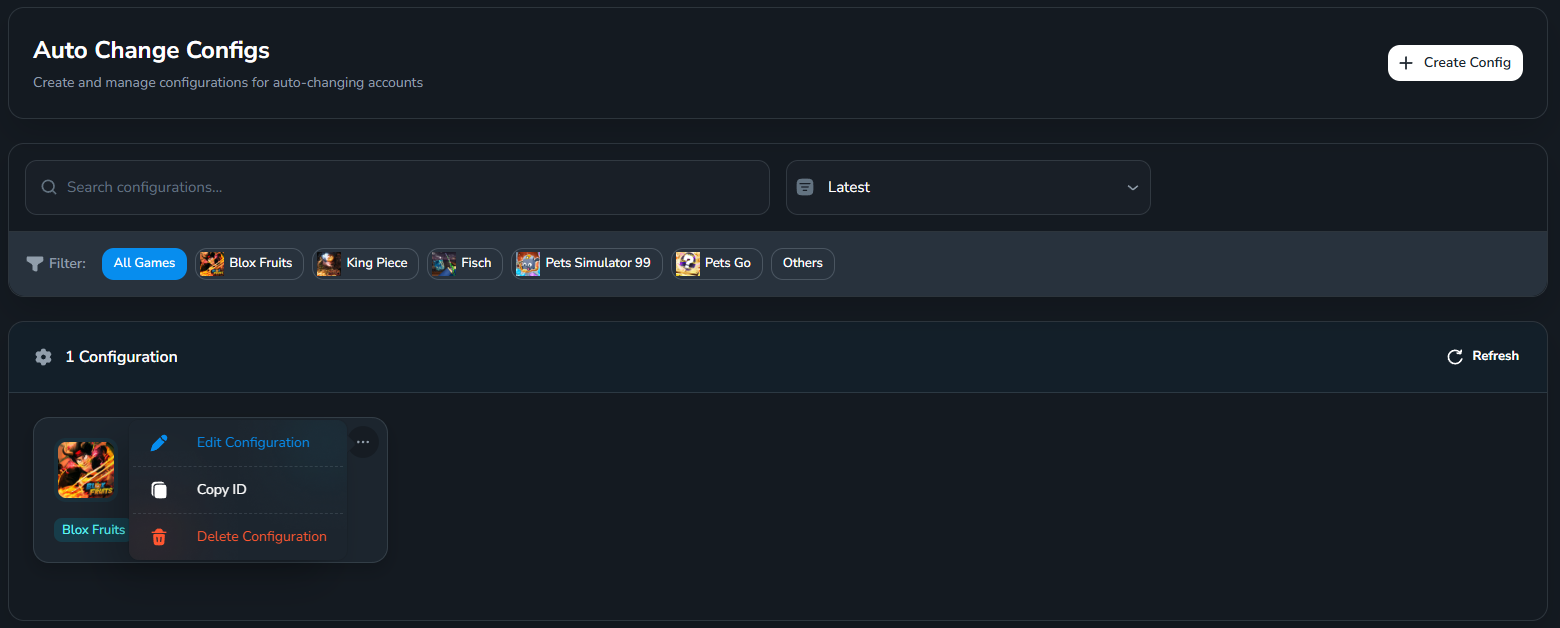
Detailed Configuration Sections
General Settings
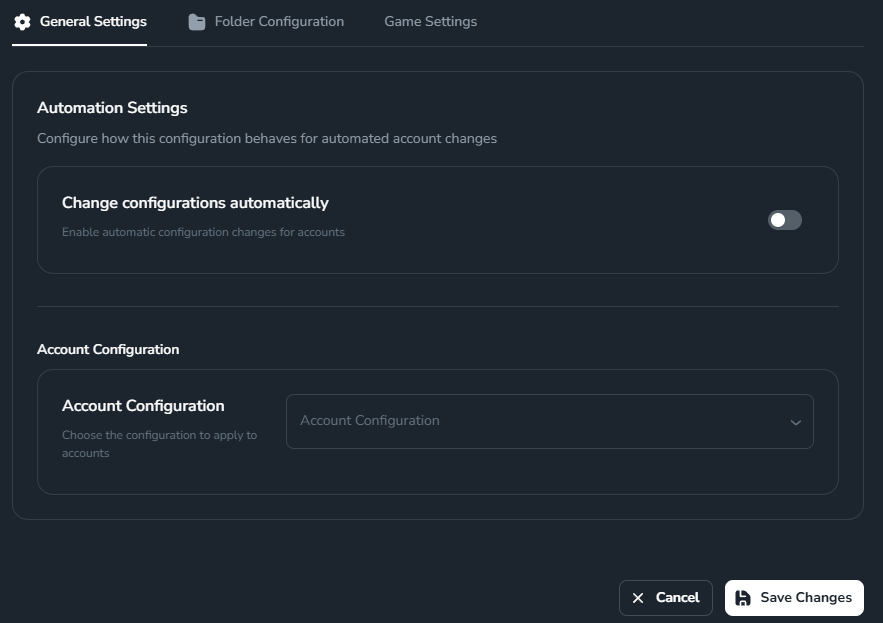
- Change configurations automatically: when enabled, the system will automatically switch to another Automation Config when conditions are met.
- Account Configuration: select the Automation Config (from the Automation section) that the account will switch to when conditions are met.
You need to enable “Change configurations automatically” to be able to select Account Configuration. If you don’t have an Automation Config yet, see the guide to create one at Create Config (Automation).
Folder Configuration
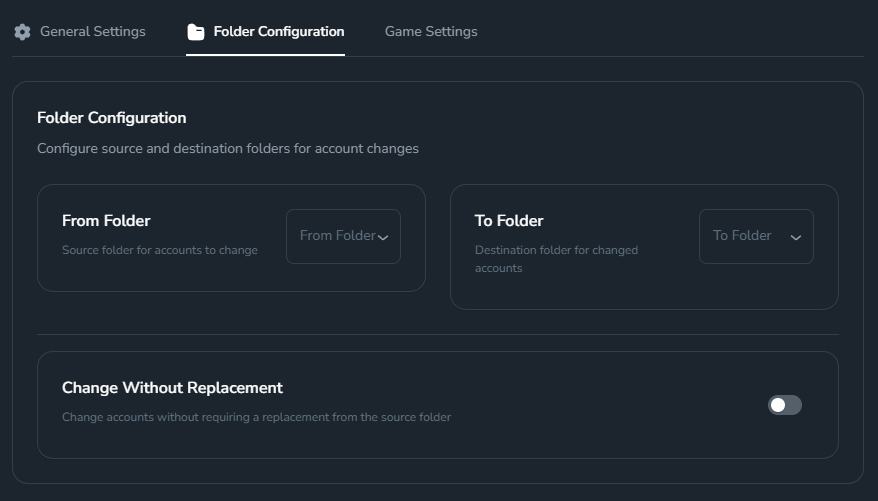
- From Folder: folder containing new accounts.
- To Folder: destination folder for accounts that have been switched (met your set conditions).
- Change Without Replacement: move account to To Folder without taking a new account from From Folder to replace it.
Game Settings
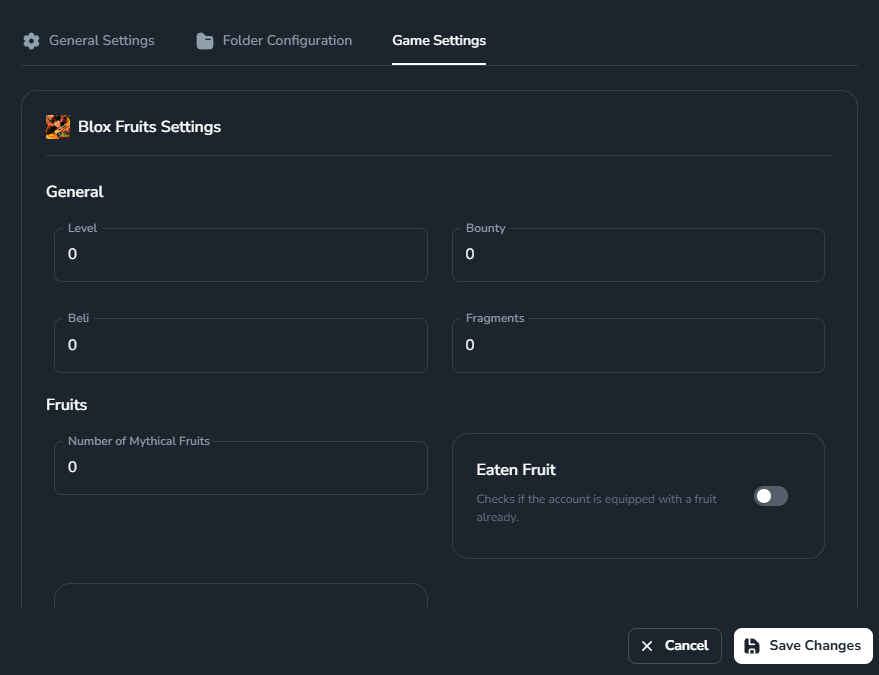
You have now created and configured your Auto Change Config.