> ## Documentation Index
> Fetch the complete documentation index at: https://docs.farmsync.cloud/llms.txt
> Use this file to discover all available pages before exploring further.
# Thêm Script
> Hướng dẫn tạo và quản lý Script trong FarmSync
## Giới thiệu
Trang này hướng dẫn bạn tạo một Script mới trong hệ thống Automation của FarmSync. Bạn sẽ biết cách truy cập trang quản lý, tạo script, đặt tên, thêm nội dung và lưu lại.
Bạn có thể truy cập trực tiếp trang Scripts Manager tại
`https://app.farmsync.cloud/dashboard/automation/scripts/`.
## Tạo Script mới
Bạn có 2 cách:
1. Mở đường dẫn: `https://app.farmsync.cloud/dashboard/automation/scripts/`
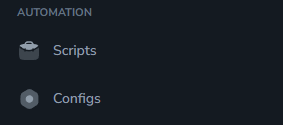
2. Hoặc vào mục Automation > Scripts như trong ảnh bên dưới.
 Sau khi truy cập, bạn sẽ thấy trang Scripts Manager.
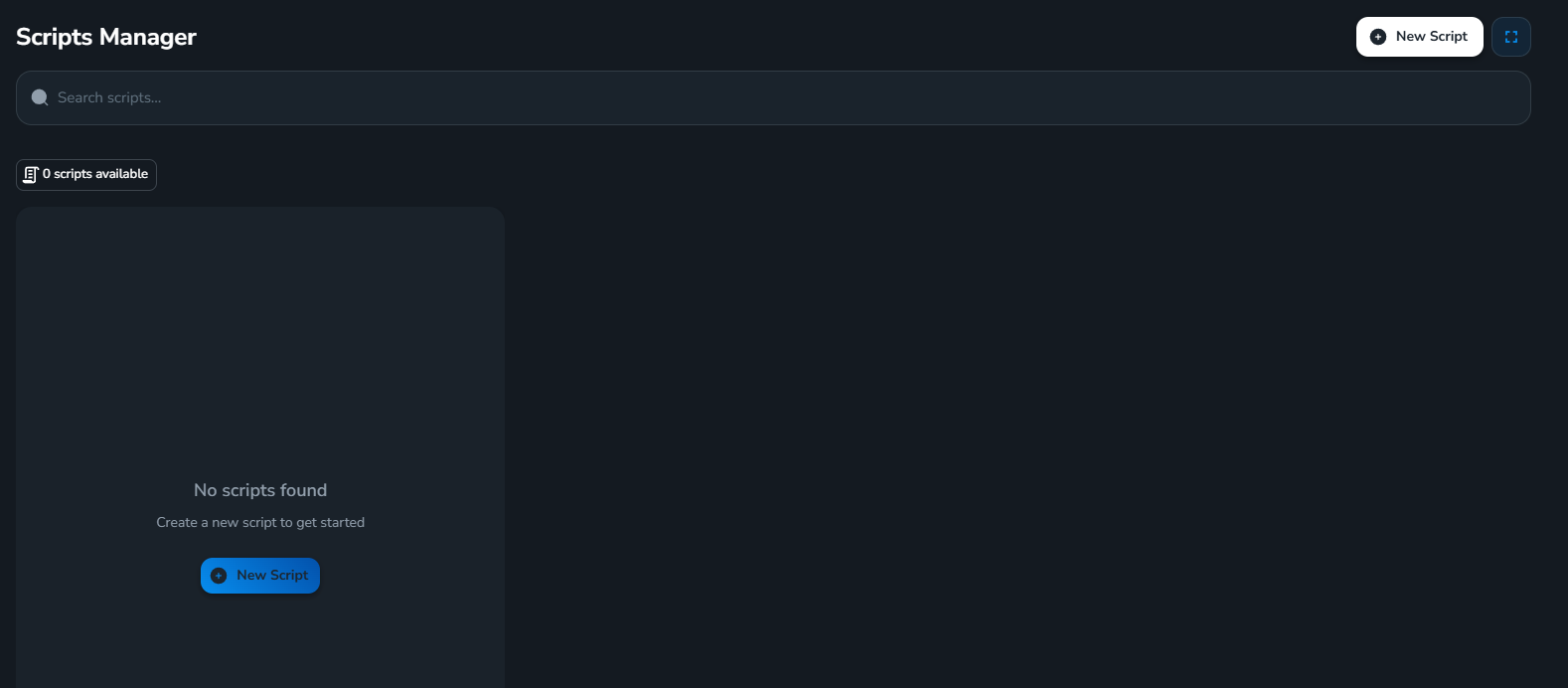 Nếu bạn là người dùng mới, danh sách sẽ trống (chưa có script nào).
Nhấn nút **New Script** để bắt đầu tạo mới.
Nếu bạn là người dùng mới, danh sách sẽ trống (chưa có script nào).
Nhấn nút **New Script** để bắt đầu tạo mới.
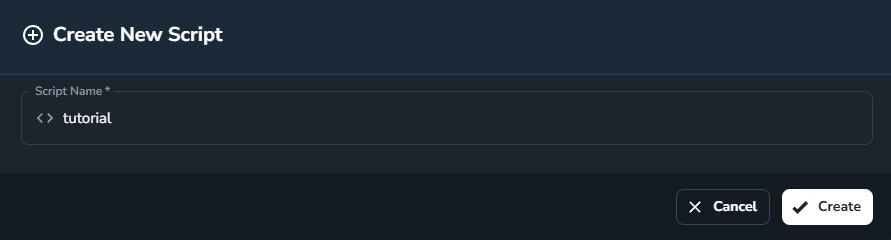
 Đặt tên cho script mà bạn mong muốn (ví dụ: `tutorial`) rồi bấm **Create**.
 Sau khi tạo xong, giao diện sẽ hiển thị:
* Bên trái: danh sách các script của bạn (mới tạo sẽ xuất hiện ở đây)
* Bên phải: vùng soạn thảo nội dung script
Sau khi tạo xong, giao diện sẽ hiển thị:
* Bên trái: danh sách các script của bạn (mới tạo sẽ xuất hiện ở đây)
* Bên phải: vùng soạn thảo nội dung script
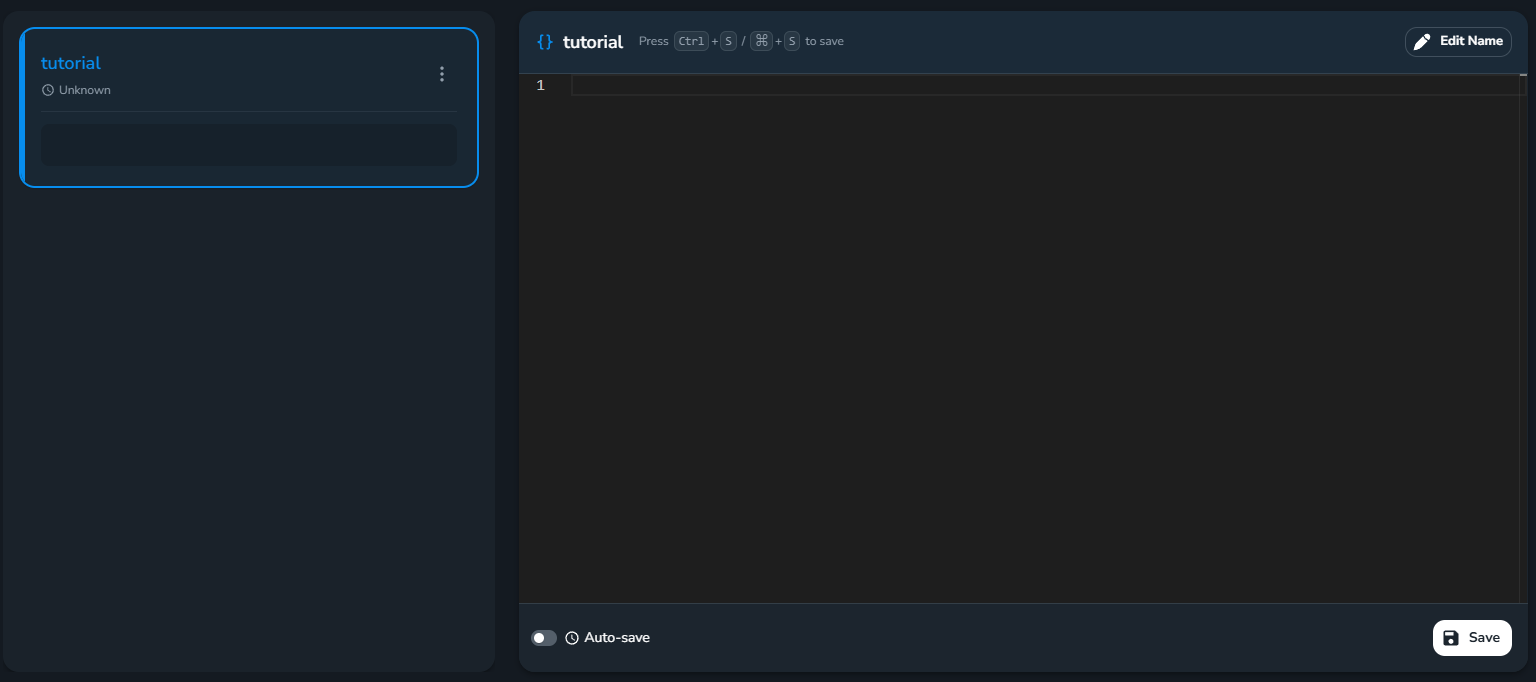 Nhập nội dung script của bạn vào khung soạn thảo.
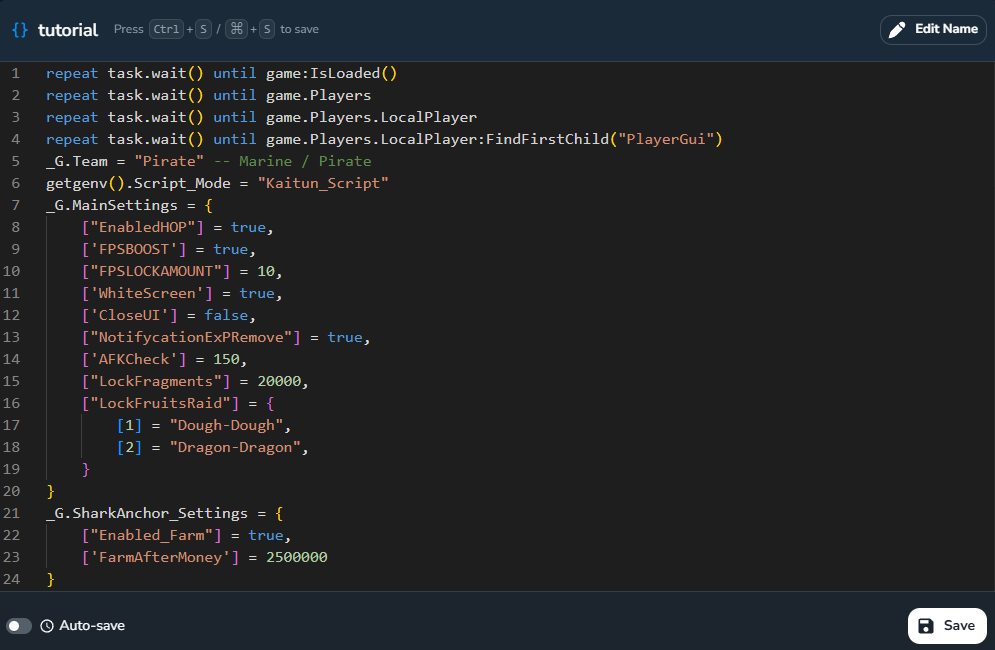 Nhấn **Save** để lưu (hoặc bật **Auto-save** để lưu tự động).
Bạn đã hoàn thành việc tạo Script thành công.
Đặt tên script ngắn gọn, dễ nhớ và có ngữ nghĩa để thuận tiện quản lý về sau.
Nhấn **Save** để lưu (hoặc bật **Auto-save** để lưu tự động).
Bạn đã hoàn thành việc tạo Script thành công.
Đặt tên script ngắn gọn, dễ nhớ và có ngữ nghĩa để thuận tiện quản lý về sau.