> ## Documentation Index
> Fetch the complete documentation index at: https://docs.farmsync.cloud/llms.txt
> Use this file to discover all available pages before exploring further.
# Device Allocation
> Guide on how to allocate devices to Licenses in FarmSync
## Overview
Device Allocation is a feature that allows you to allocate devices to activated Licenses. There are 2 different allocation methods depending on the License type:
* **Time-Based License**: Flexible allocation of usage time for multiple devices
* **Device-Based License**: Allocation of fixed device slots
Each License type has a different allocation method. Please choose the guide that matches your License type.
## Time-Based License Allocation
### Steps to allocate devices for Time-Based License
1. Check if your License Key has been activated
Ensure the Time-Based License has been successfully activated before performing allocation.
1. Find and click on **Manage Time Allocation** in the **Action** column
 2. After clicking, it will display a detailed table of your License Key, where you can check information and activate your devices
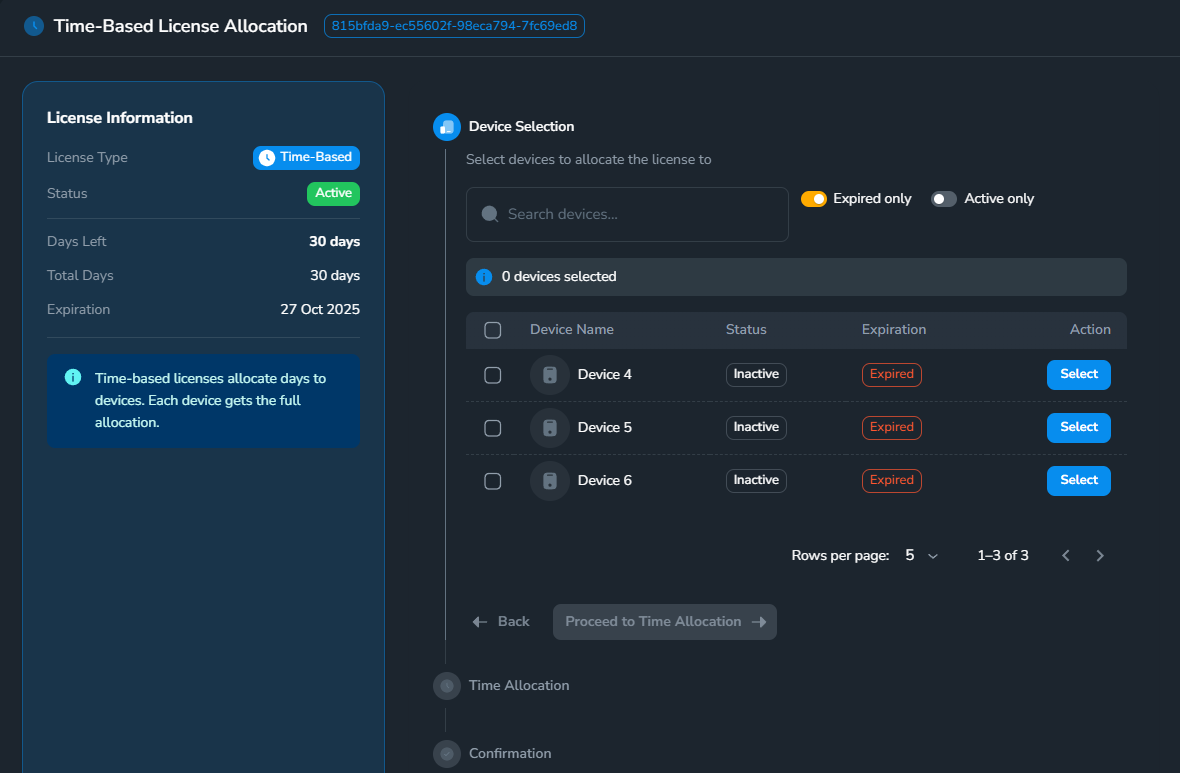 1. After the device details table appears, look to the right where devices are listed - this is where you select the device you want to activate
2. You can search for your desired device name or click **Expired only** to find expired devices
3. With a **License Key**, for example, if you have 30 days and want to activate all 3 devices below, find and select the **Expired** devices, then click **Proceed to Time Allocation**:
1. After the device details table appears, look to the right where devices are listed - this is where you select the device you want to activate
2. You can search for your desired device name or click **Expired only** to find expired devices
3. With a **License Key**, for example, if you have 30 days and want to activate all 3 devices below, find and select the **Expired** devices, then click **Proceed to Time Allocation**:
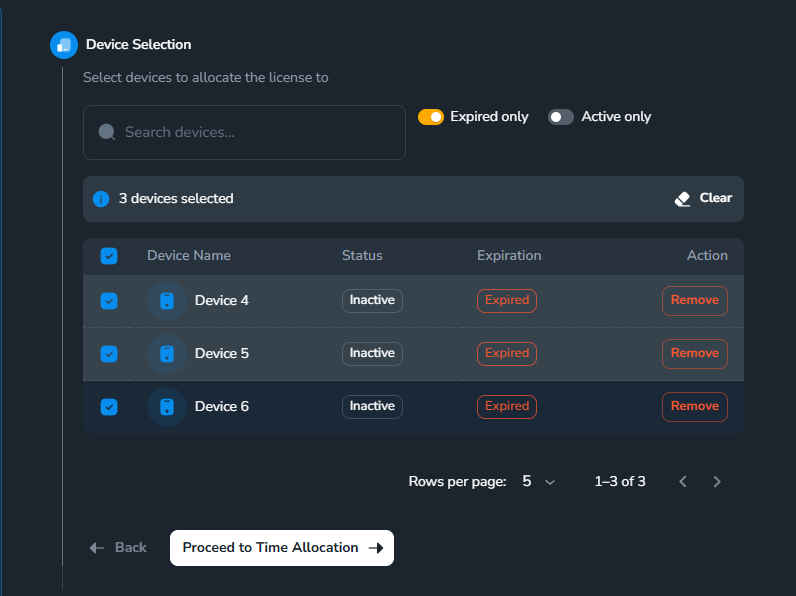 1. After clicking, it will take you to **Time Allocation** to divide time for each device you selected.
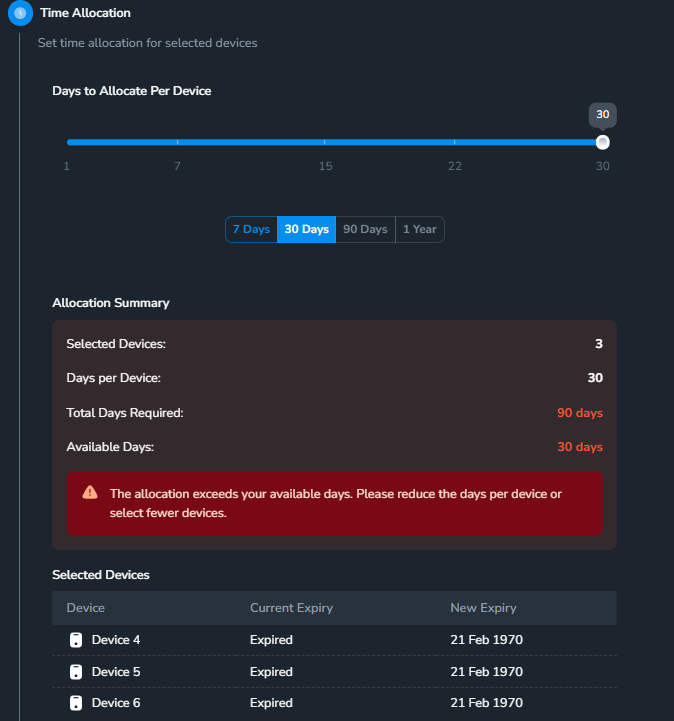 2. Currently, I have a 30-day key but want to divide it among 3 devices. That means 10 days per device, so we'll adjust using the slider to be less than or equal to 10 (depending on your key and selected devices)
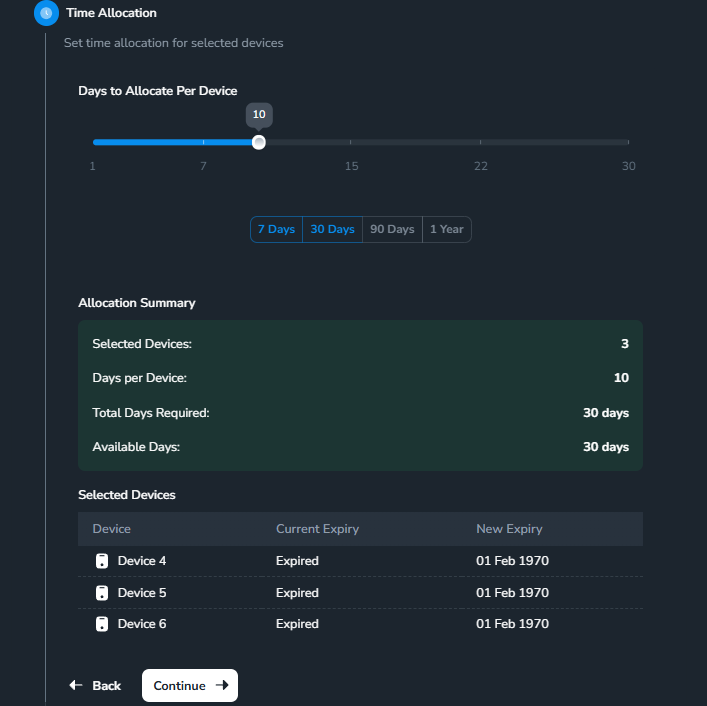 3. Click **"Continue"** to proceed.
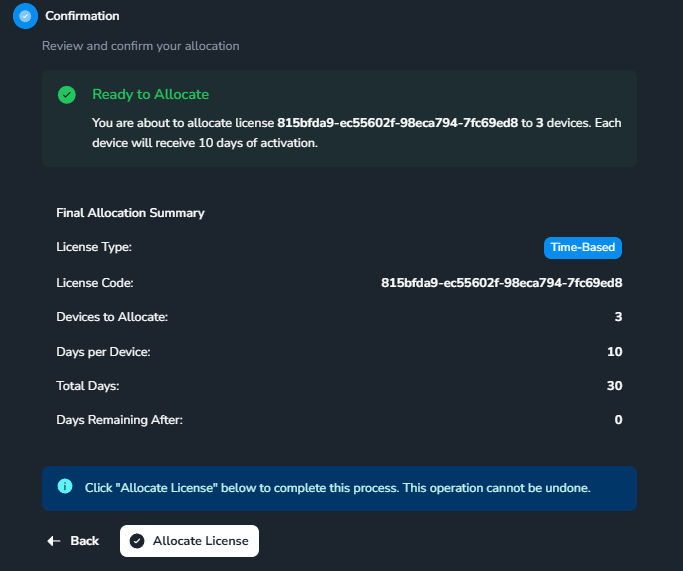
At this step, just click **Allocation License** and you're done
3. Click **"Continue"** to proceed.
At this step, just click **Allocation License** and you're done
 ## Device-Based License Allocation
### Steps to allocate devices for Device-Based License
1. Check if your License Key has been activated
Ensure the Time-Based License has been successfully activated before performing allocation.
1. Find and click on **Manage Device Allocation** in the **Action** column
## Device-Based License Allocation
### Steps to allocate devices for Device-Based License
1. Check if your License Key has been activated
Ensure the Time-Based License has been successfully activated before performing allocation.
1. Find and click on **Manage Device Allocation** in the **Action** column
 2. After clicking, it will display a detailed table of your Device-Based License Key, where you can check information and activate your devices
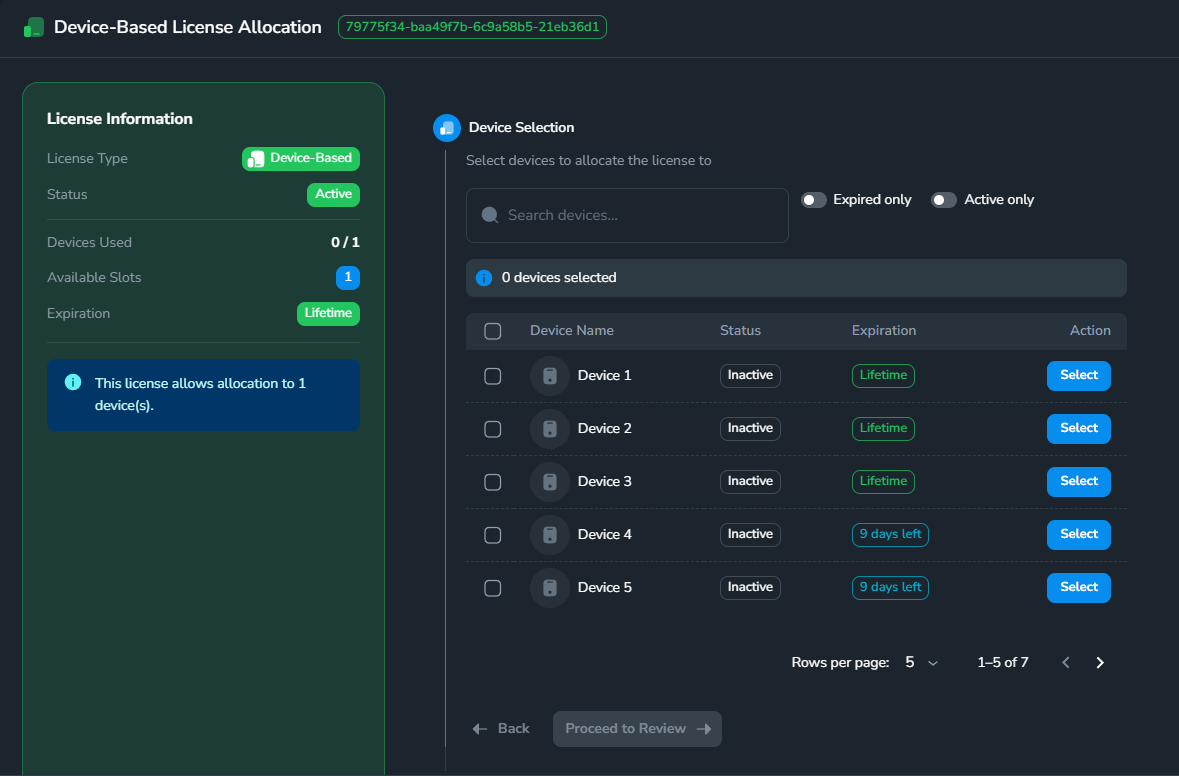 1. After the device details table appears, look to the right where devices are listed - this is where you select the device you want to activate
2. You can search for your desired device name or click **Expired only** to find unactivated devices
3. With a **Device-Based License**, you can activate the number of devices according to the slots purchased (check **Available Slots** on the right), select devices then click **Proceed to Device Allocation**:
1. After the device details table appears, look to the right where devices are listed - this is where you select the device you want to activate
2. You can search for your desired device name or click **Expired only** to find unactivated devices
3. With a **Device-Based License**, you can activate the number of devices according to the slots purchased (check **Available Slots** on the right), select devices then click **Proceed to Device Allocation**:
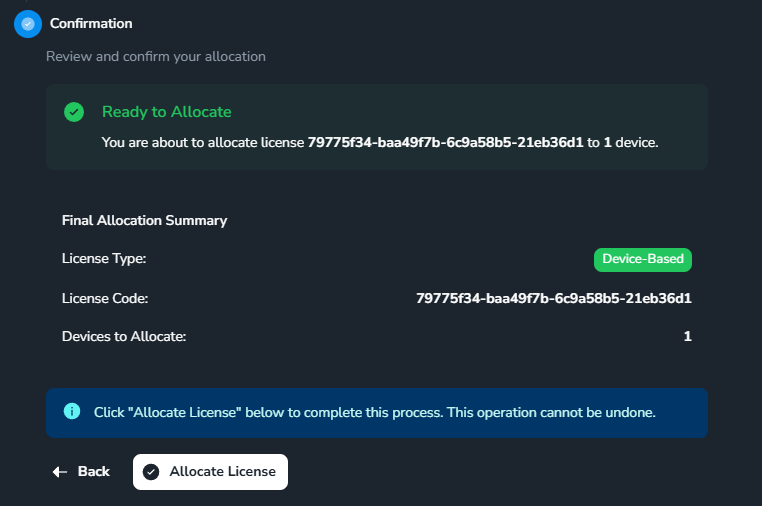
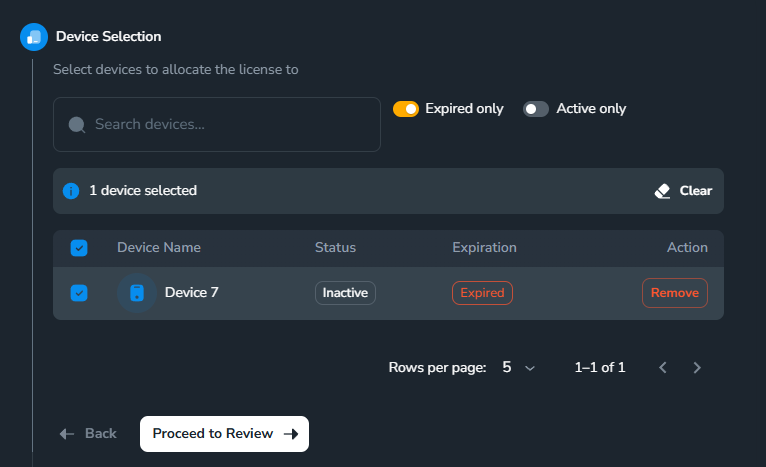 Review the information you selected as well as the License Key information, then click **Continue** after confirmation.
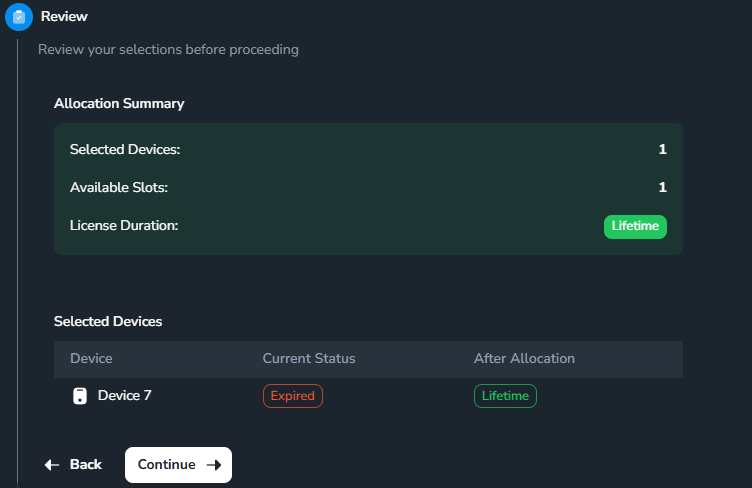 At this step, just click **Allocation License** and you're done
 ## Troubleshooting
**Possible causes:**
## Troubleshooting
**Possible causes:**
- Allocation days exceed remaining days (Time-Based)
- Device slots are full (Device-Based)
- Device is already allocated in another License
- Device ID is invalid
**Solutions:**
- Check remaining days/slots in the License
- Confirm the device is not being used in another License
- Recheck the Device ID
**Causes:**
- Device is currently in use
- No edit permissions
- License has expired
**Solutions:**
- Wait for device to stop being used
- Contact admin for permissions
- Check License status
**Causes:**
- Device has not synced with server
- License not activated on device
- Unstable network connection
**Solutions:**
- Restart the FarmSync application on the device
- Check internet connection
- Contact support if the problem persists
## Additional Information
### Best Practices
#### Effective Management
* **Smart allocation**: Don't allocate too many days to one device if unnecessary (Time-Based)
* **Regular monitoring**: Check remaining days/slots periodically
* **Backup allocation**: Keep notes of important allocations
#### Optimization
* **Pool management**: Keep some reserve days in the pool (Time-Based)
* **Slot management**: Manage device slots efficiently (Device-Based)
* **Device rotation**: Rotate devices to maximize License utilization
* **Monitoring**: Use monitoring features to track usage
### Support
If you encounter any issues during device allocation, please:
Email the technical support team
View frequently asked questions
Plan your allocation beforehand to avoid wasting License time or device slots.