> ## Documentation Index
> Fetch the complete documentation index at: https://docs.farmsync.cloud/llms.txt
> Use this file to discover all available pages before exploring further.
# Add Script
> Guide to creating and managing Scripts in FarmSync
## Introduction
This page guides you through creating a new Script in FarmSync's Automation system. You'll learn how to access the management page, create a script, name it, add content, and save it.
You can directly access the Scripts Manager page at `https://app.farmsync.cloud/dashboard/automation/scripts/`.
## Create a New Script
You have 2 options:
1. Open the URL: `https://app.farmsync.cloud/dashboard/automation/scripts/`
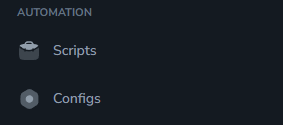
2. Or go to Automation > Scripts as shown in the image below.
 After accessing, you'll see the Scripts Manager page.
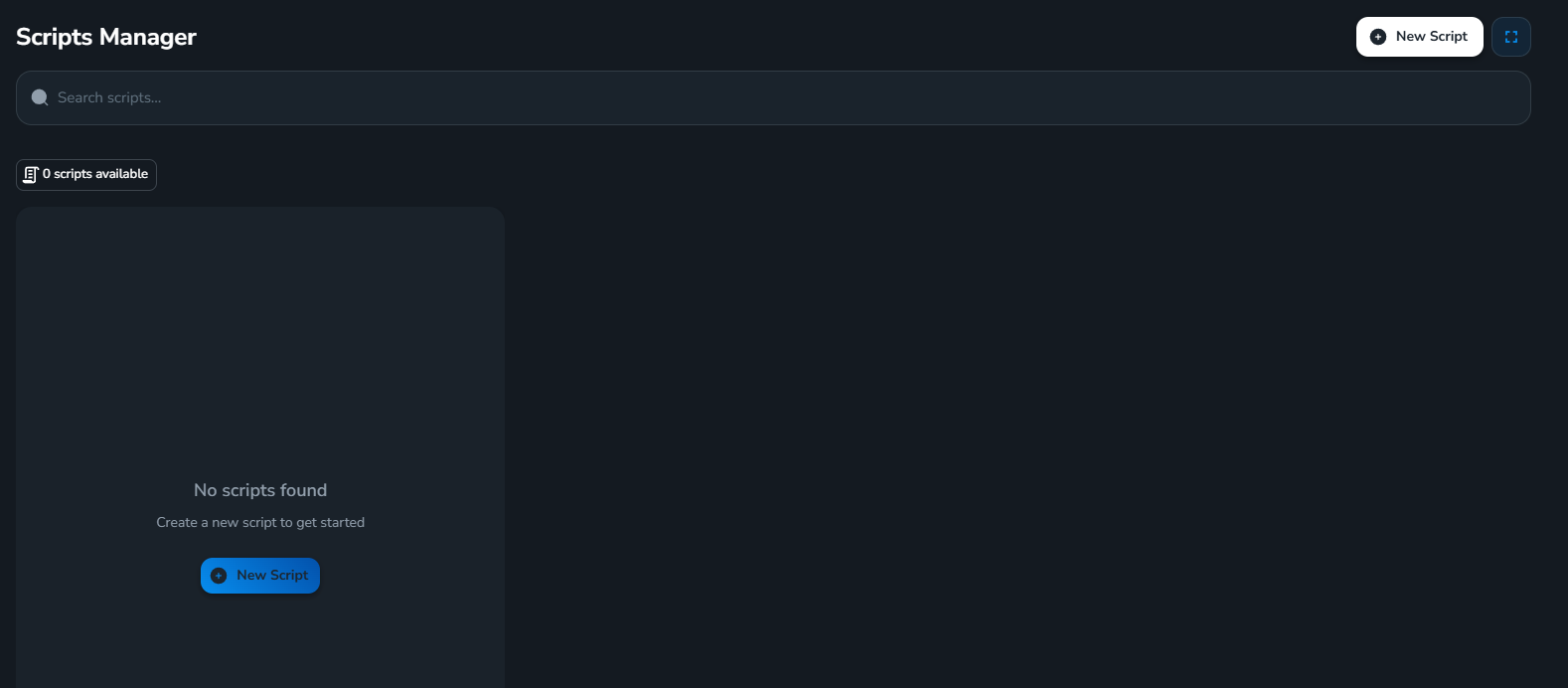 If you're a new user, the list will be empty (no scripts yet).
Click the **New Script** button to start creating.
If you're a new user, the list will be empty (no scripts yet).
Click the **New Script** button to start creating.
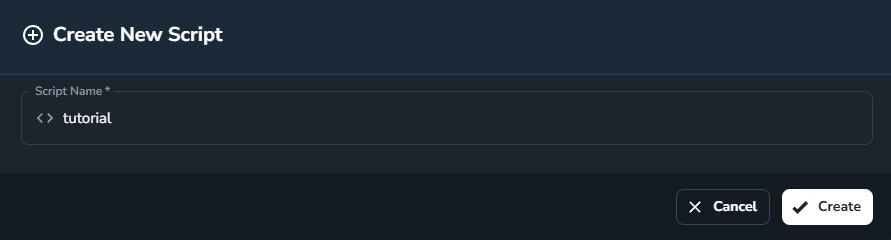
 Enter your desired script name (for example: `tutorial`) then click **Create**.
 After creation, the interface will display:
* Left side: list of your scripts (newly created will appear here)
* Right side: script content editing area
After creation, the interface will display:
* Left side: list of your scripts (newly created will appear here)
* Right side: script content editing area
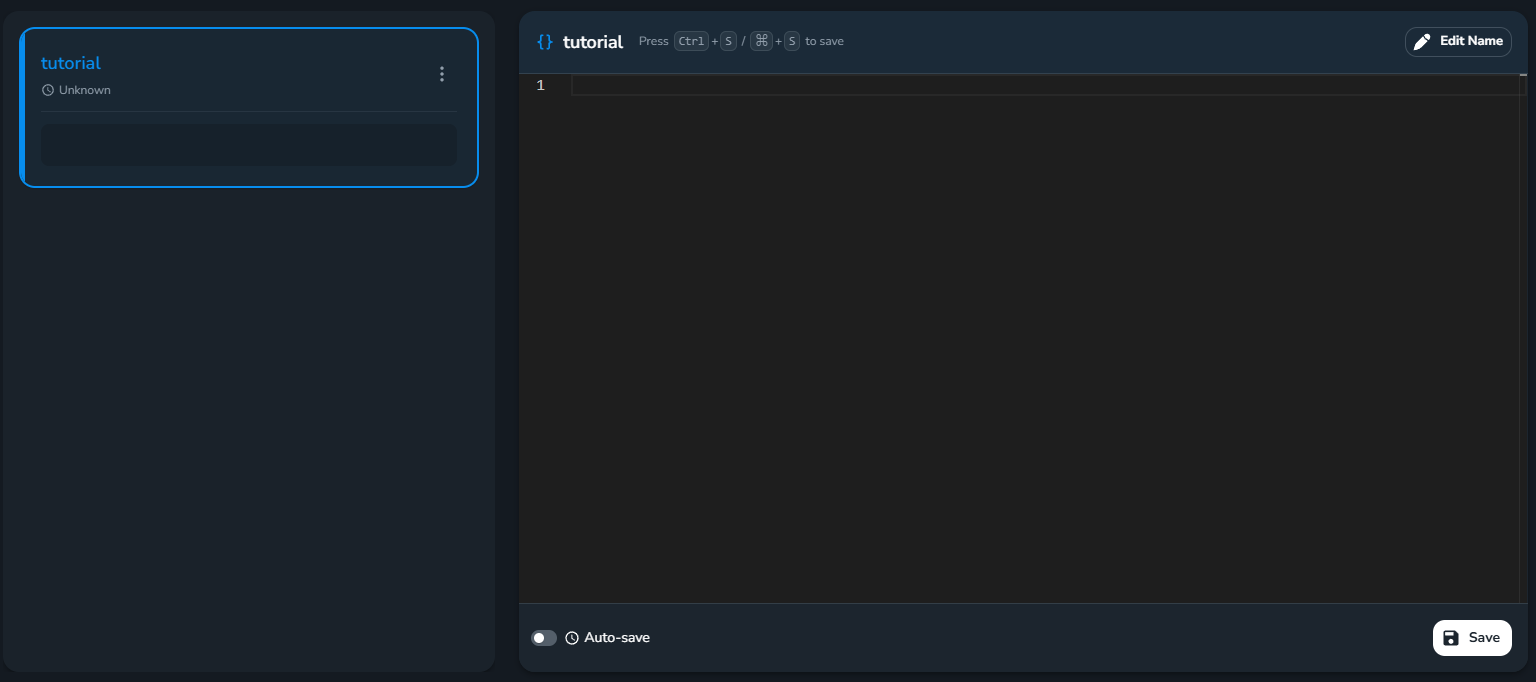 Enter your script content in the editor.
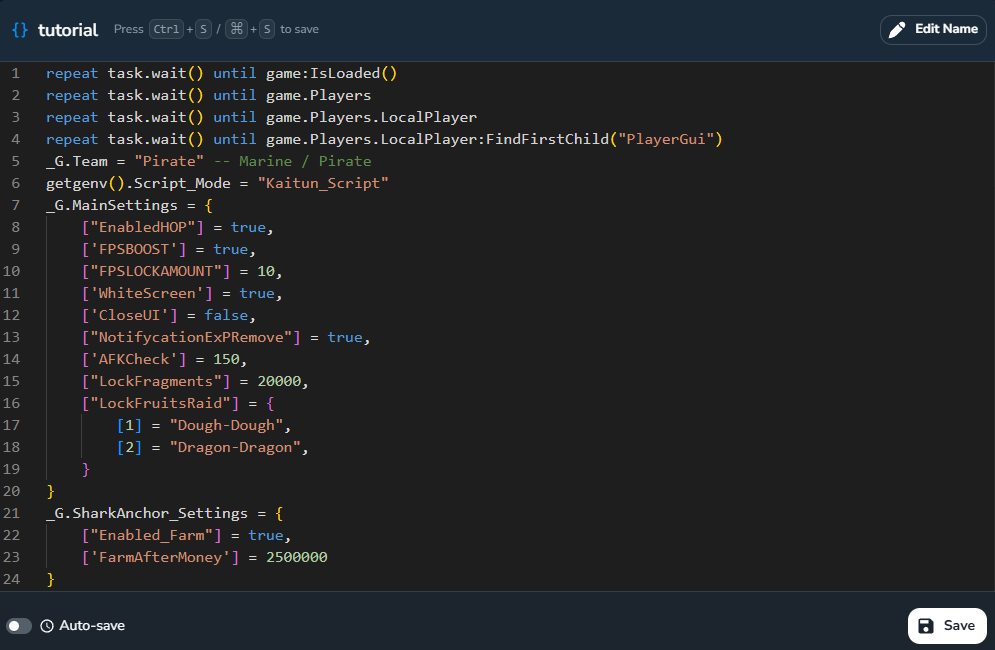 Click **Save** to save (or enable **Auto-save** for automatic saving).
You have successfully completed creating a Script.
Name your scripts concisely, memorably, and meaningfully for convenient future management.
Click **Save** to save (or enable **Auto-save** for automatic saving).
You have successfully completed creating a Script.
Name your scripts concisely, memorably, and meaningfully for convenient future management.