> ## Documentation Index
> Fetch the complete documentation index at: https://docs.farmsync.cloud/llms.txt
> Use this file to discover all available pages before exploring further.
# Create Config
> Guide to creating and configuring Config in FarmSync
## Introduction
Config is used to define how a running session operates: game parameters, accompanying scripts, workspace, cookies, and automatic account switching rules. Follow the steps below to create and set up your first config.
You can directly access the Configuration Manager page at
`https://app.farmsync.cloud/dashboard/automation/configs/`.
## Create a New Config
You have 2 options:
1. Open the URL: `https://app.farmsync.cloud/dashboard/automation/configs/`
2. Or go to Automation > Configs.
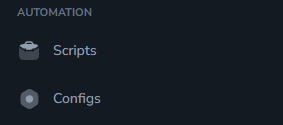 When accessing for the first time, the list will be empty.
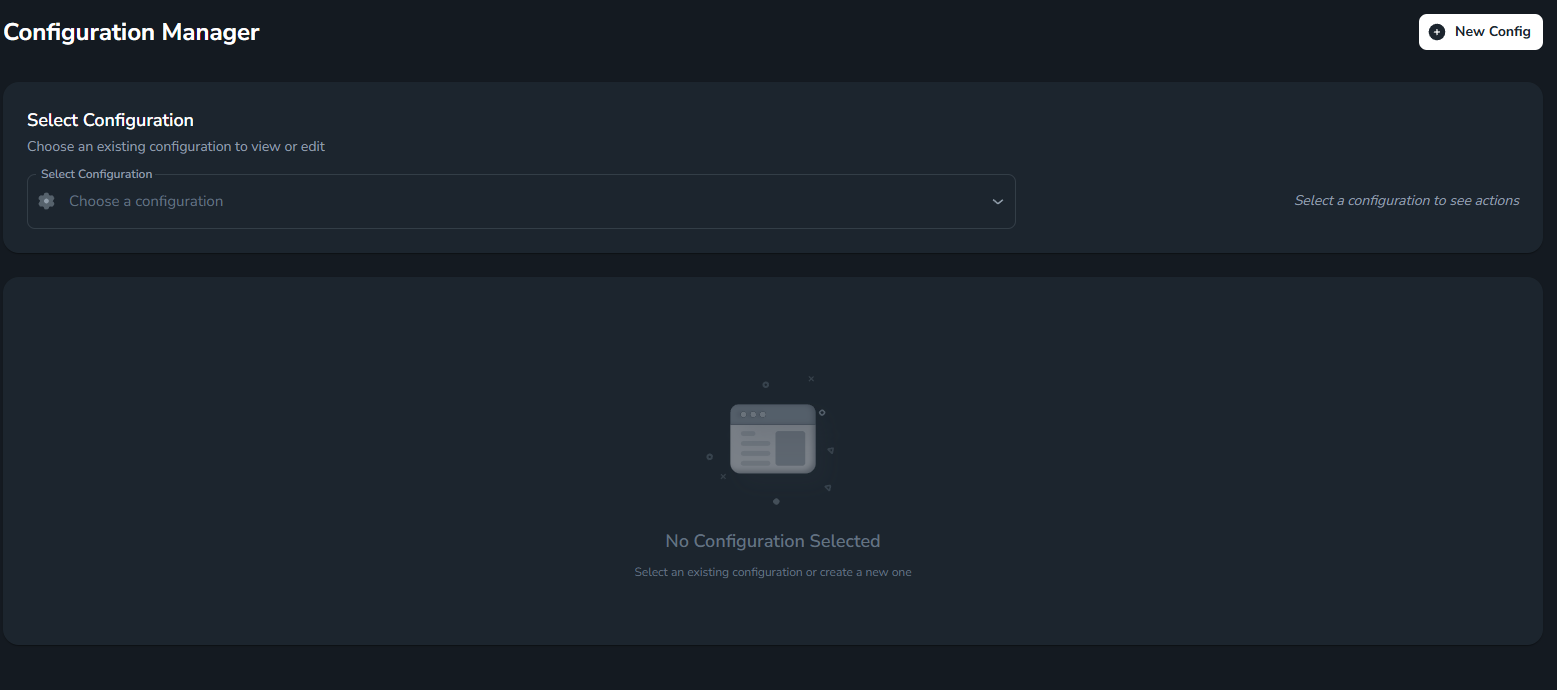 Click **New Config** to create a new one.
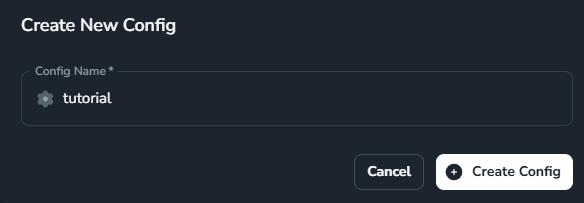
 Name your config and select **Create Config**.
 After creation, you'll be taken to the Config's detailed configuration page.
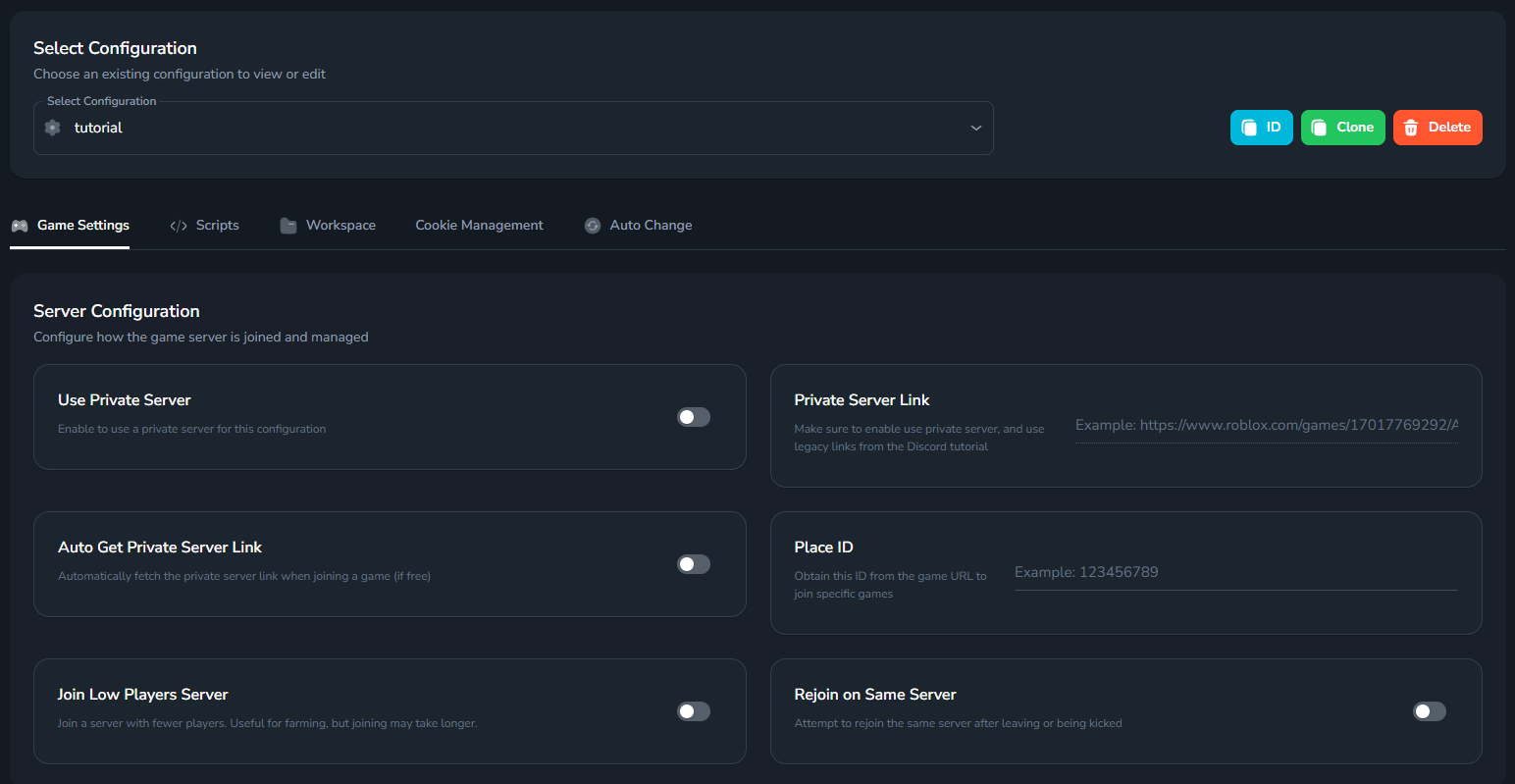 The main areas you can adjust include:
* **Game Settings**
* **Scripts**
* **Workspace**
* **Cookie Management**
* **Auto Change**
Details for each area are as follows.
## Game Settings
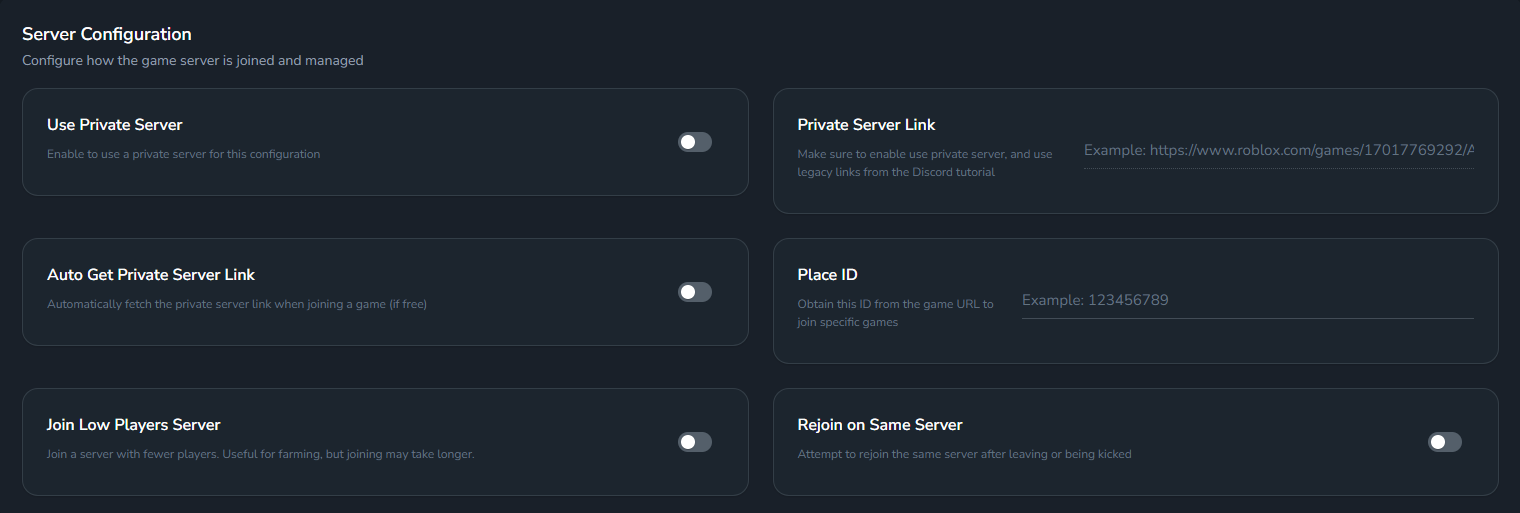
### Server Configuration
Set up how to join the server and game parameters.
The main areas you can adjust include:
* **Game Settings**
* **Scripts**
* **Workspace**
* **Cookie Management**
* **Auto Change**
Details for each area are as follows.
## Game Settings
### Server Configuration
Set up how to join the server and game parameters.
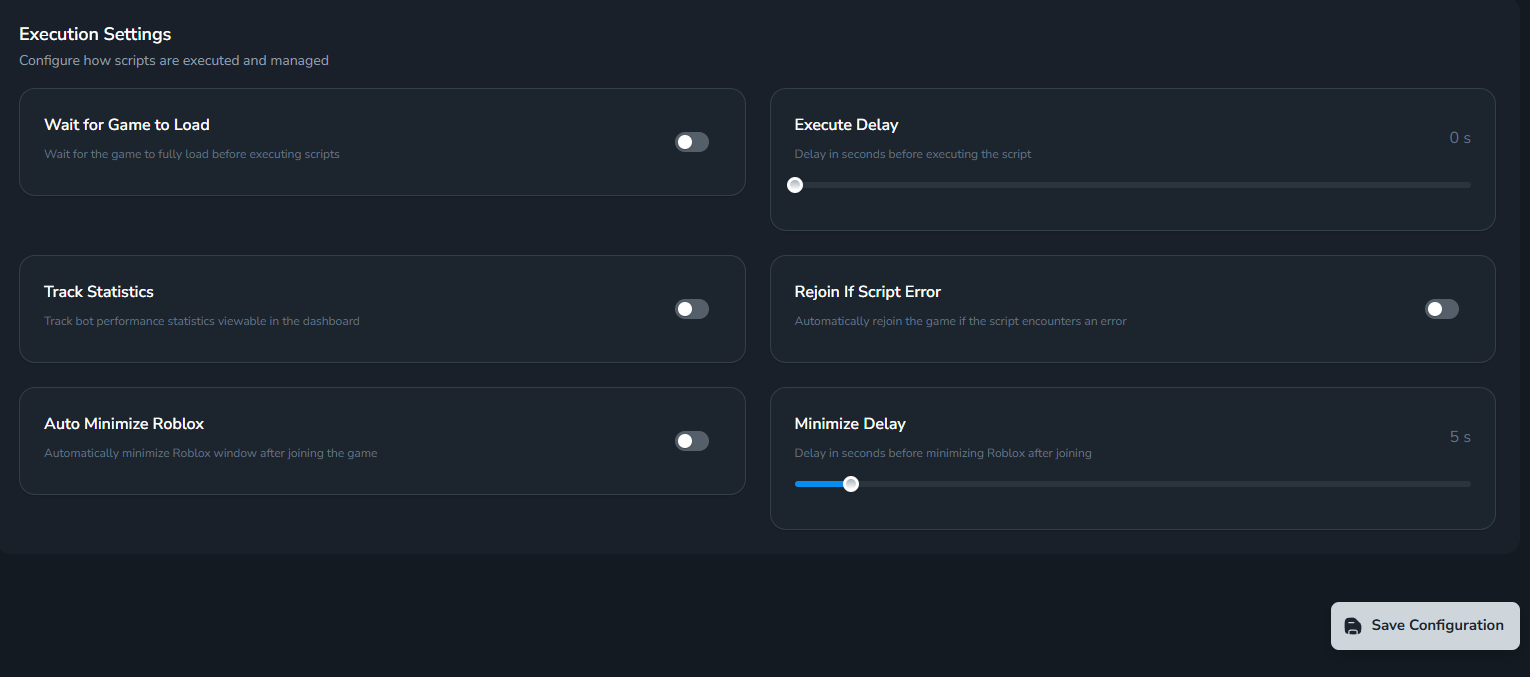
 ### Execution Settings
Adjust how scripts are executed (delay, auto-rejoin on error, auto minimize, etc.).
### Execution Settings
Adjust how scripts are executed (delay, auto-rejoin on error, auto minimize, etc.).
 ## Scripts
Select one or more scripts to run with this config.
## Scripts
Select one or more scripts to run with this config.
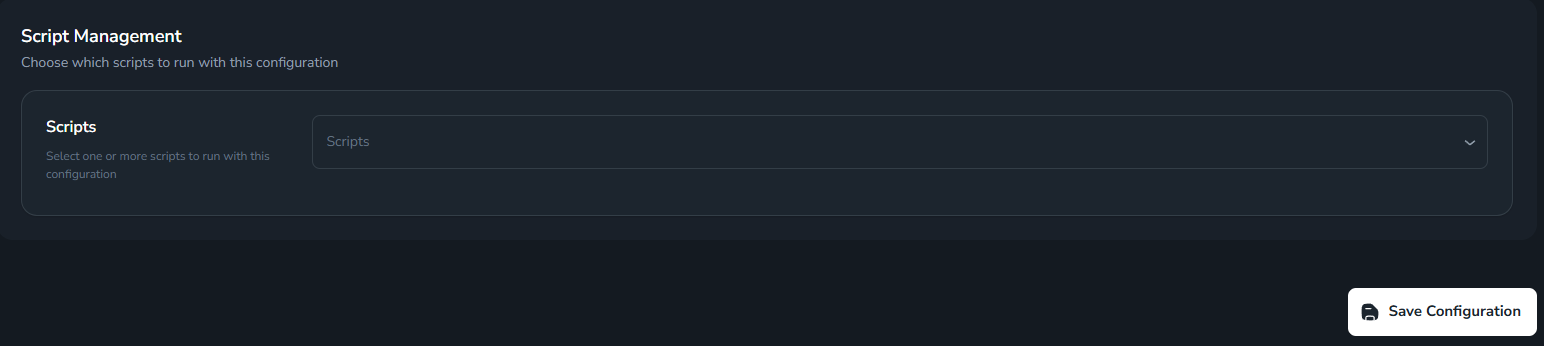 You can select multiple scripts at once for one config.
## Workspace (Advanced)
Manage Workspace: clone, rename files according to format... For advanced users.
You can select multiple scripts at once for one config.
## Workspace (Advanced)
Manage Workspace: clone, rename files according to format... For advanced users.
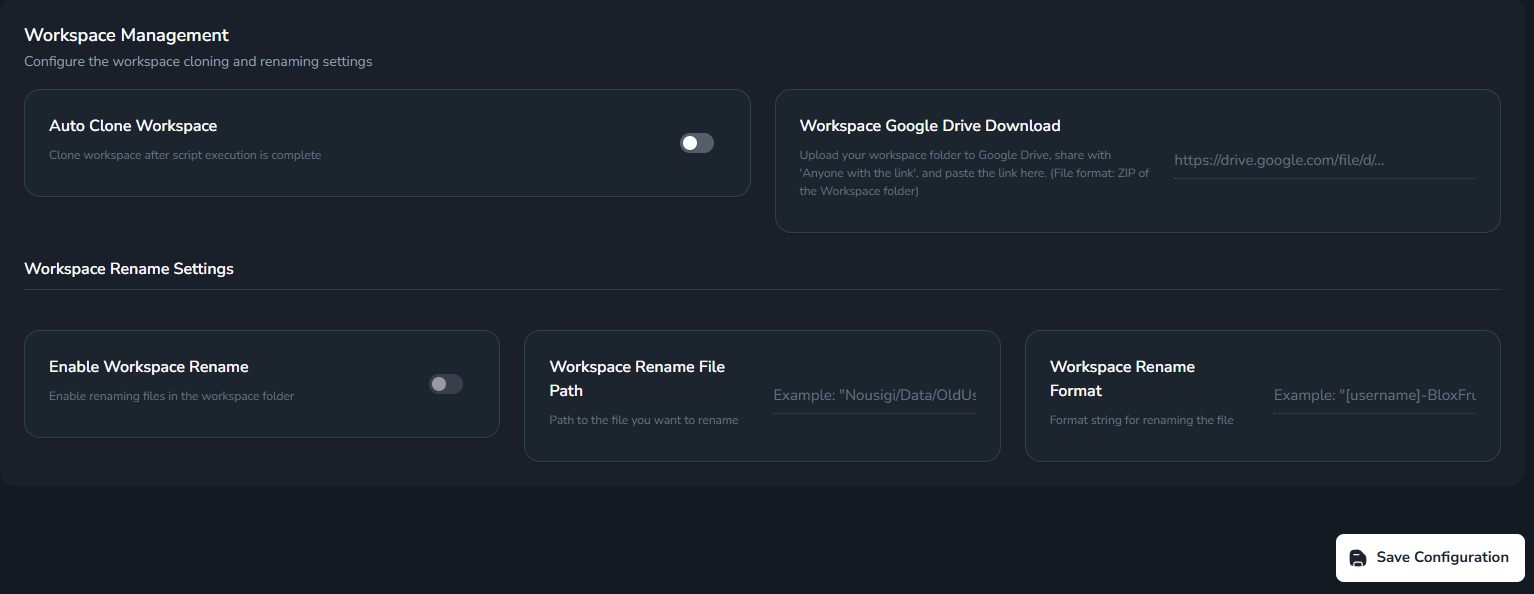 Advanced feature: used to customize workspace for each account.
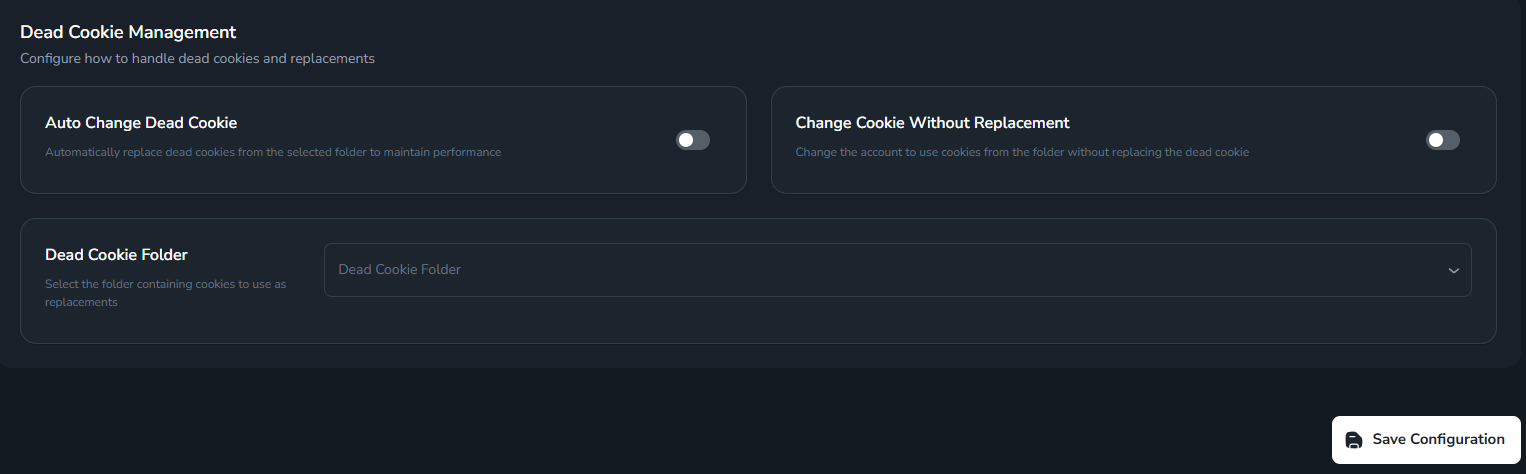
## Cookie Management
Automatically change accounts when cookies expire or according to your selection.
Advanced feature: used to customize workspace for each account.
## Cookie Management
Automatically change accounts when cookies expire or according to your selection.
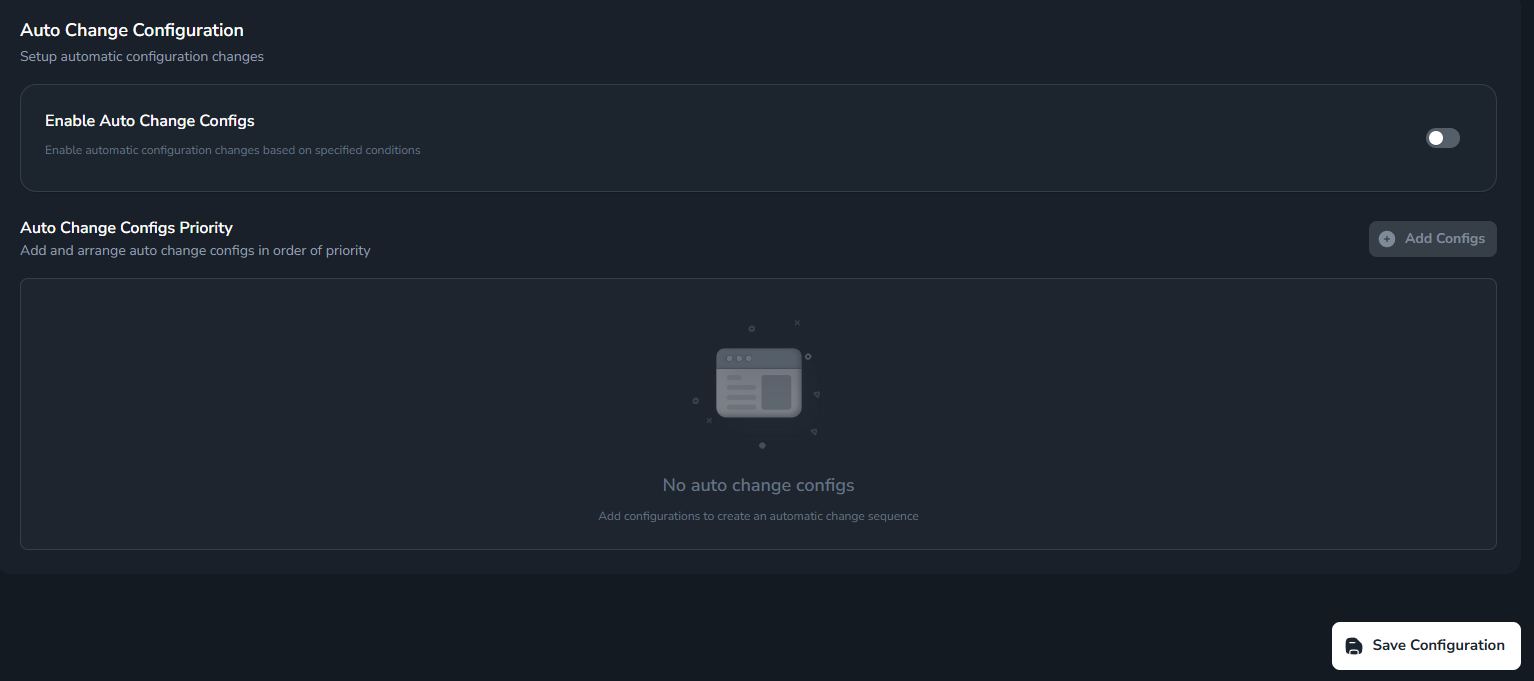
 ## Auto Change
Set up automatic account switching when conditions from Autochange Config are met; you can arrange **priority**.
## Auto Change
Set up automatic account switching when conditions from Autochange Config are met; you can arrange **priority**.
 After finishing adjustments, click **Save Configuration** at the bottom of the page to save.