> ## Documentation Index
> Fetch the complete documentation index at: https://docs.farmsync.cloud/llms.txt
> Use this file to discover all available pages before exploring further.
# Create Folder
> Guide to creating and managing Folders for Autochange
## Introduction
Folders are used to organize accounts for Autochange. You'll create folders to contain new accounts and track completed accounts.
Folders page: `https://app.farmsync.cloud/dashboard/autochange/folders/`.
## Create Folder
You have 2 options:
1. Open the link: `https://app.farmsync.cloud/dashboard/autochange/folders/`
2. Or go to Autochange > Folders.
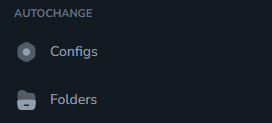 Folders page:
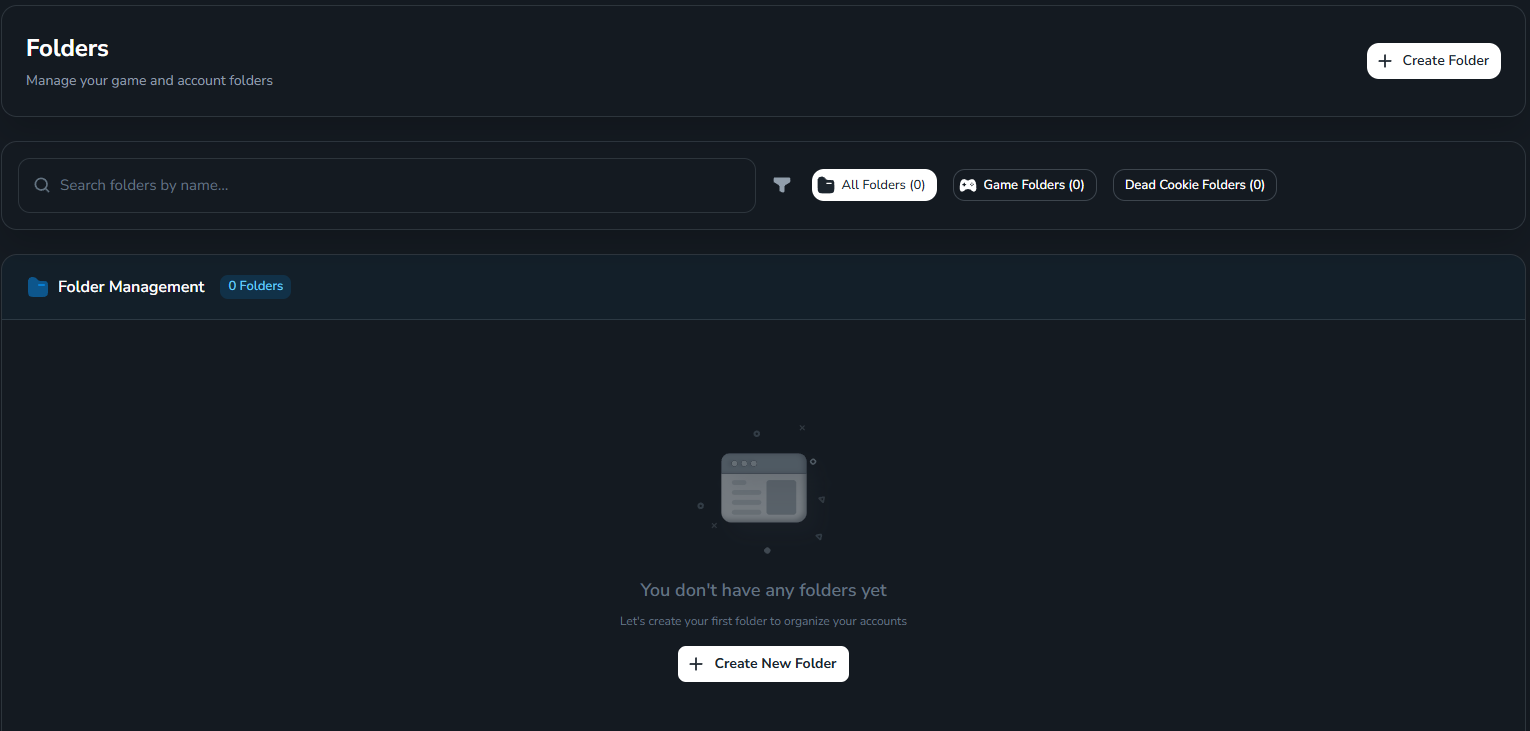 If you don't have any folders yet, click **Create Folder**.
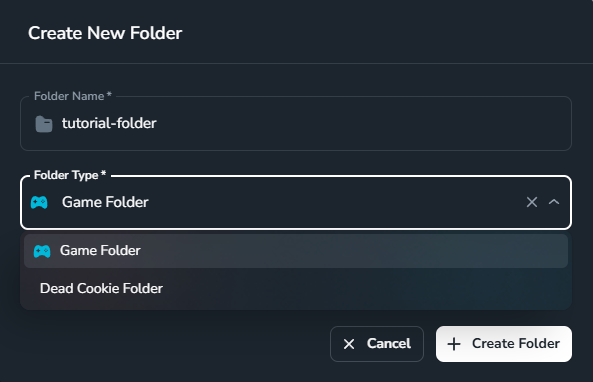
 Name the folder and select the folder type. There are 2 types:
* **Game Folder**: Folder for active accounts that will be used in the game.
* **Dead Cookie Folder**: Folder for accounts with expired cookies that need to be refreshed.
Then click **Create Folder** to create.
Name the folder and select the folder type. There are 2 types:
* **Game Folder**: Folder for active accounts that will be used in the game.
* **Dead Cookie Folder**: Folder for accounts with expired cookies that need to be refreshed.
Then click **Create Folder** to create.
 After creation, you'll see the folder list:
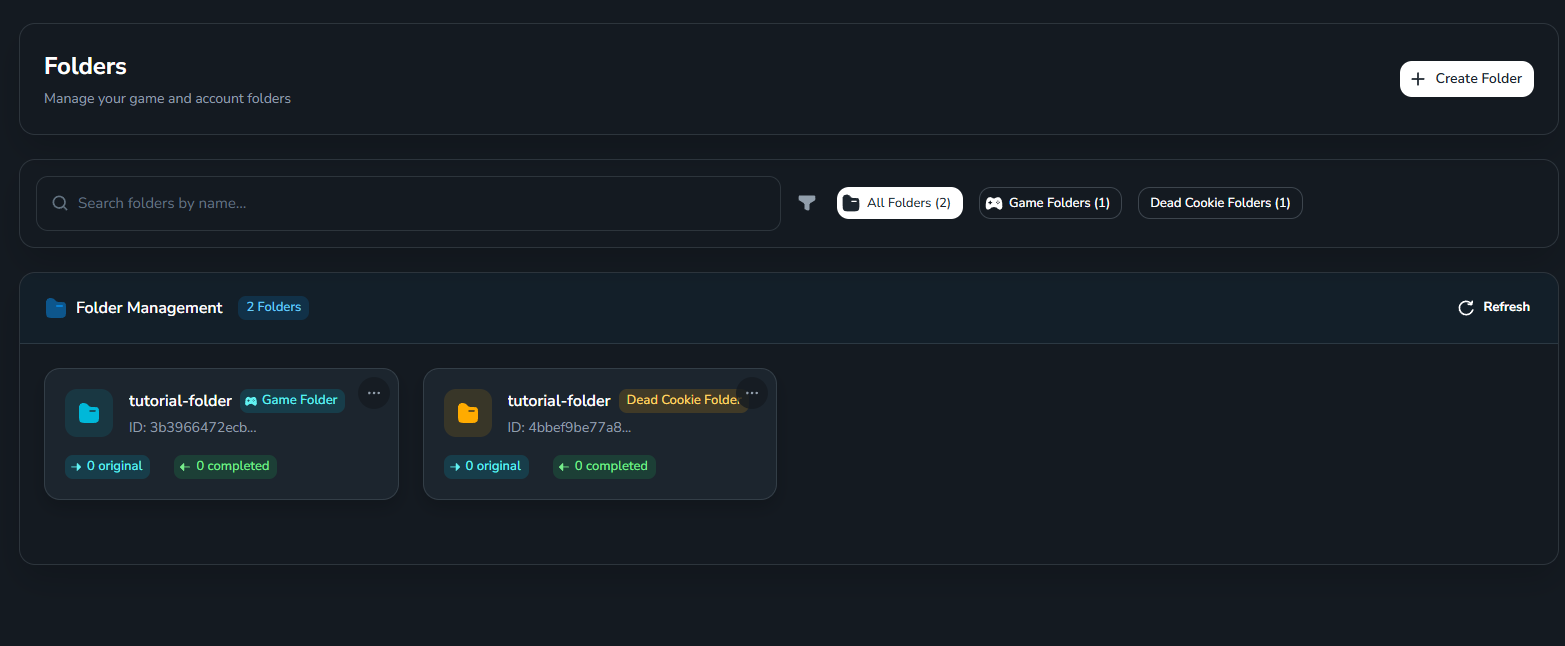 Click on the folder you want to work with to enter the detail page.
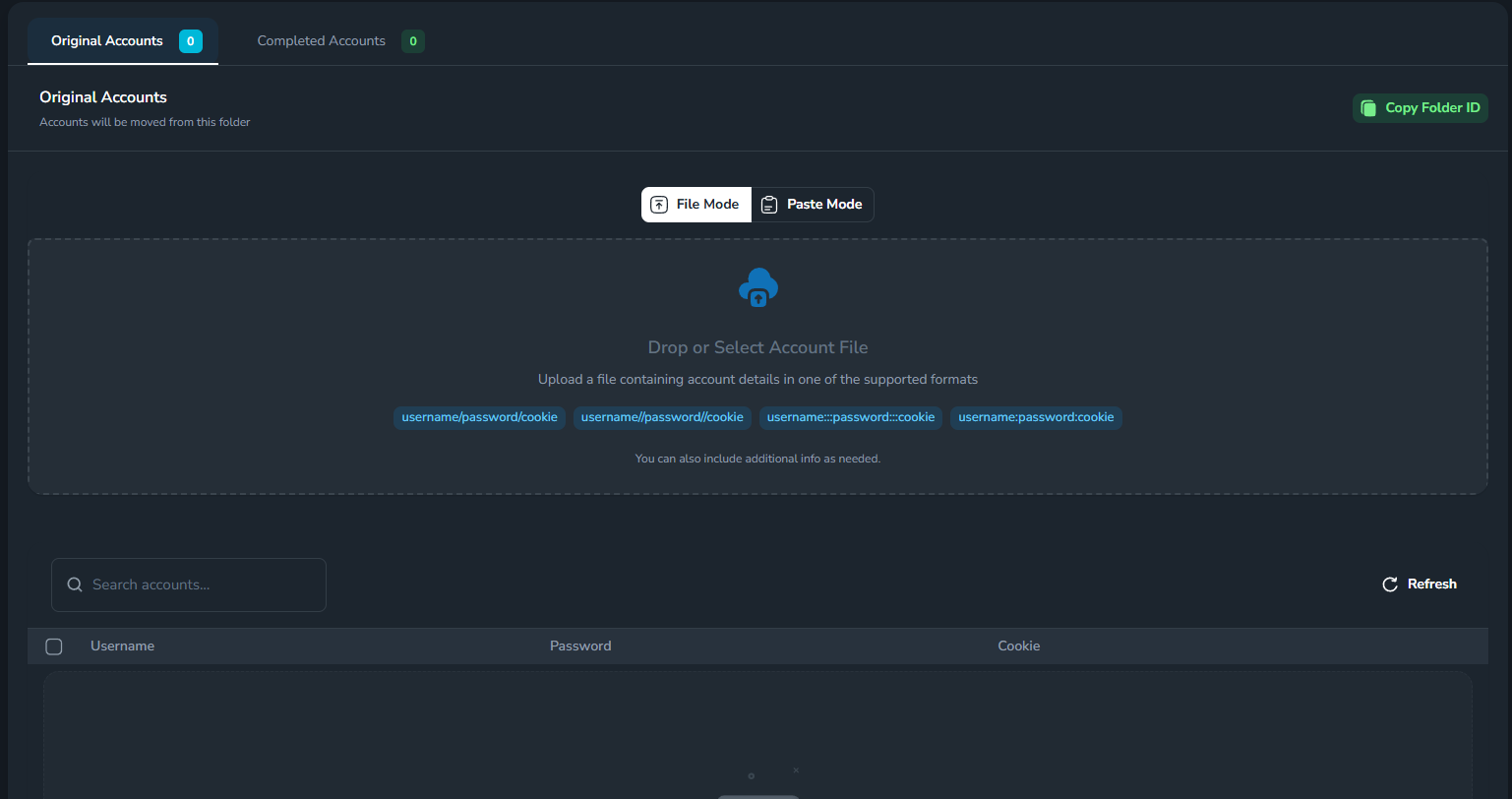 Here:
* **Original Accounts** tab: where you add accounts (Autochange will take accounts from here).
* **Completed Accounts** tab: where accounts that have met the conditions will be automatically transferred.
You have created and configured a Folder for Autochange.
Here:
* **Original Accounts** tab: where you add accounts (Autochange will take accounts from here).
* **Completed Accounts** tab: where accounts that have met the conditions will be automatically transferred.
You have created and configured a Folder for Autochange.