> ## Documentation Index
> Fetch the complete documentation index at: https://docs.farmsync.cloud/llms.txt
> Use this file to discover all available pages before exploring further.
# Create Auto Change Config
> Guide to creating and configuring Auto Change for accounts
## Introduction
Auto Change allows automatic account switching when your set conditions are met. Follow these steps to create your first Auto Change Config.
You can directly access:
`https://app.farmsync.cloud/dashboard/autochange/configs/`.
## Create Auto Change Config
You have 2 options:
1. Open the URL: `https://app.farmsync.cloud/dashboard/autochange/configs/`
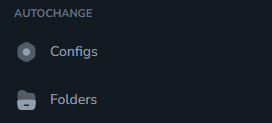
2. Or in the Autochange menu, click **Configs** as shown below.
 Auto Change Configs destination page:
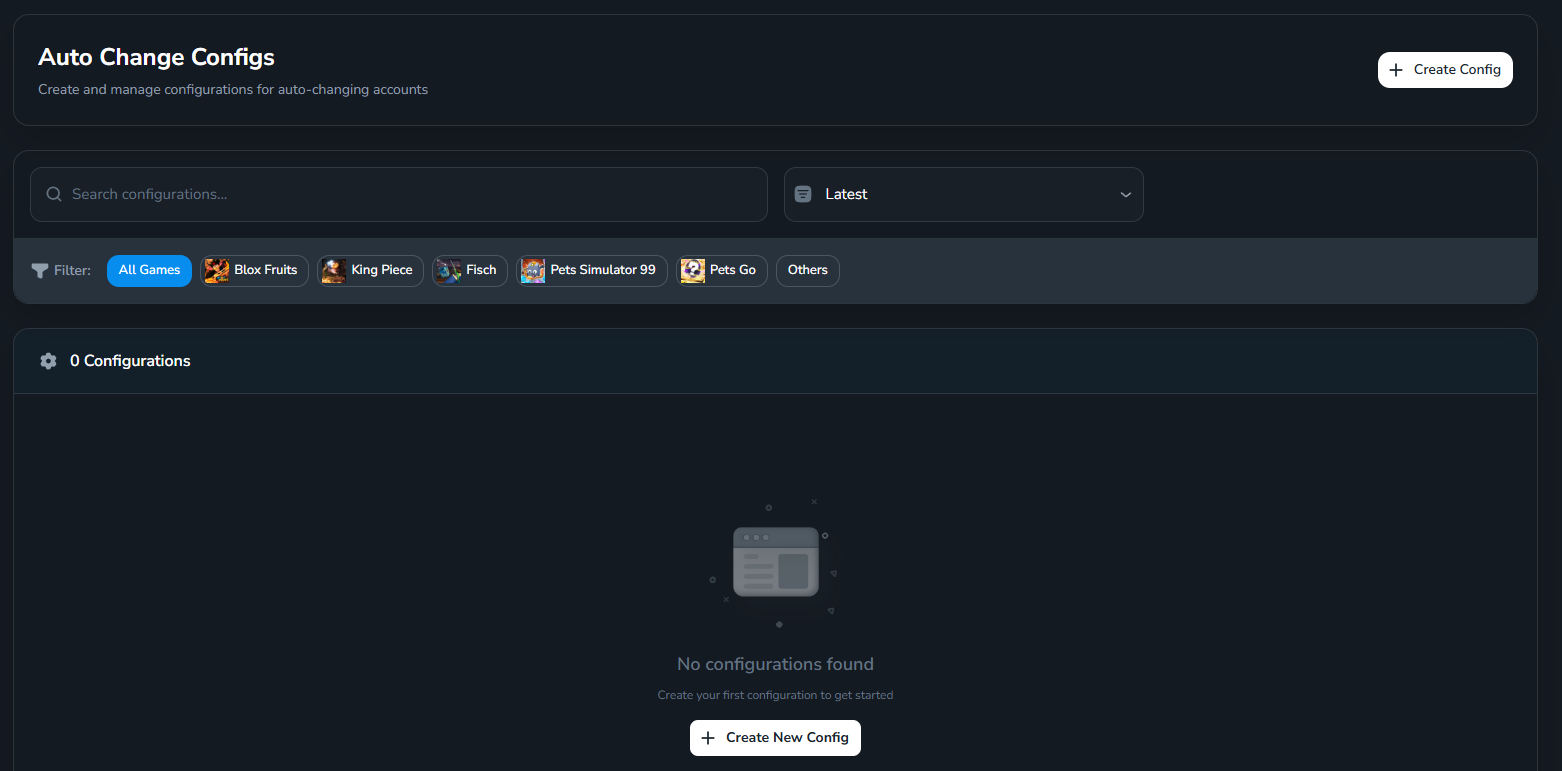 Click **Create Config** to create a new config.
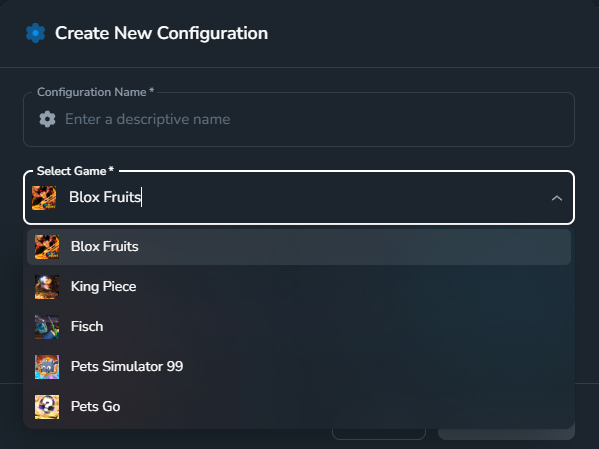
 Enter a name and select the game you want to configure, then click **Create Config** to continue.
 After creation, the configuration will appear in the list.
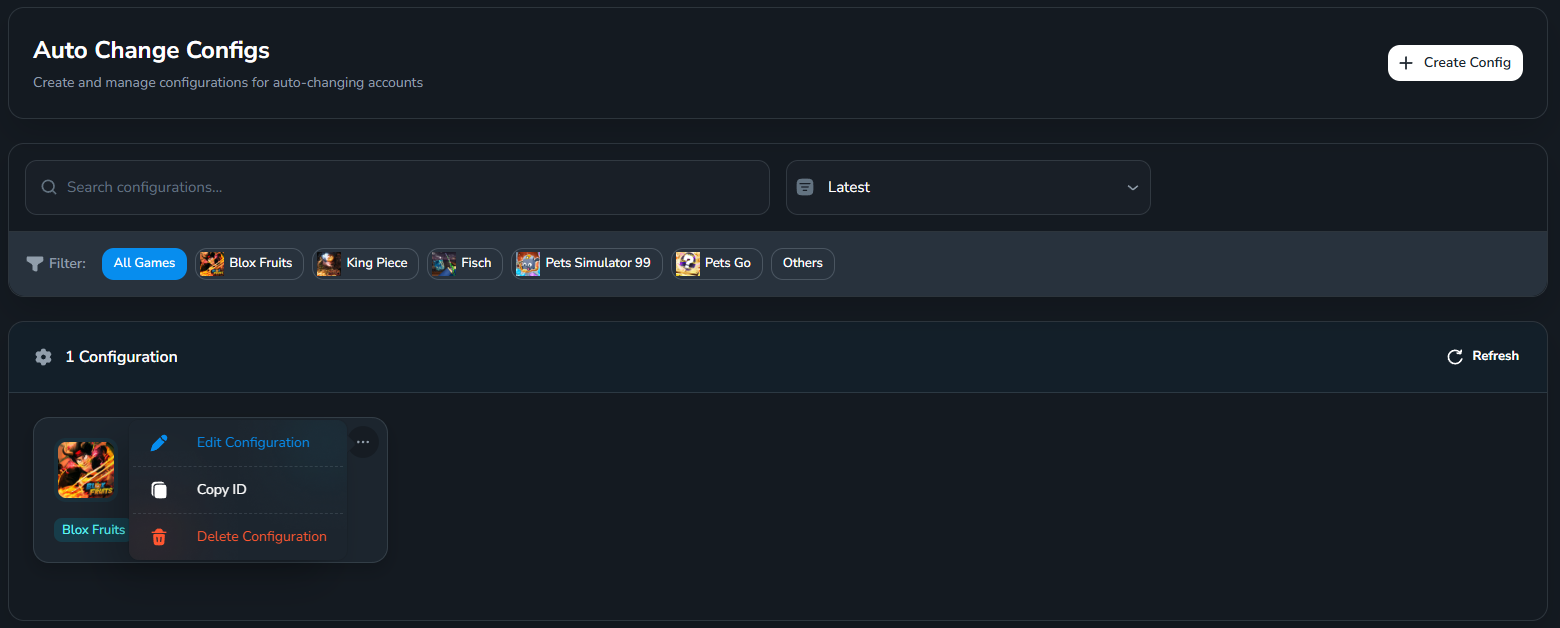 Click the three dots on the config and select **Edit Configuration** to open the editing page.
## Detailed Configuration Sections
### General Settings
Click the three dots on the config and select **Edit Configuration** to open the editing page.
## Detailed Configuration Sections
### General Settings
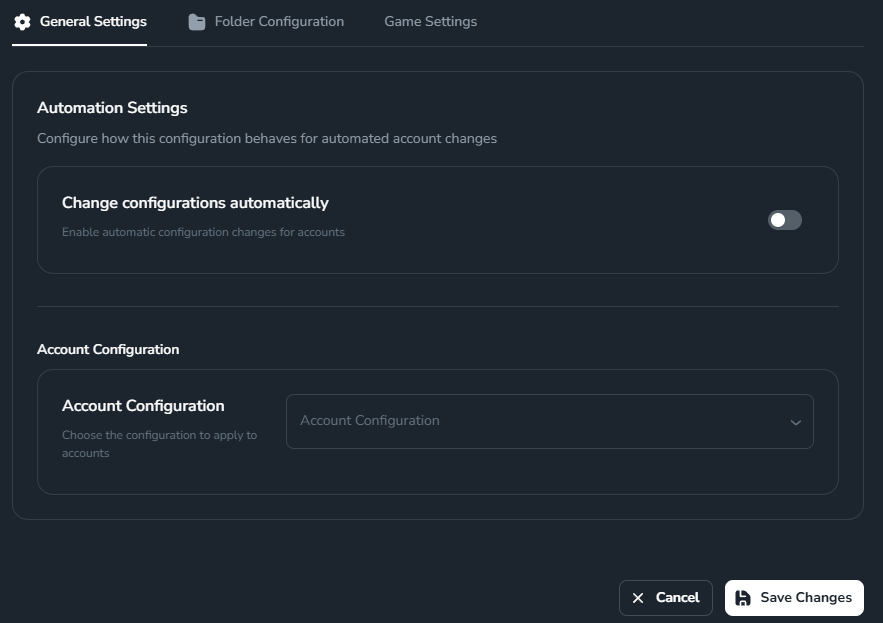 * **Change configurations automatically**: when enabled, the system will automatically switch to another Automation Config when conditions are met.
* **Account Configuration**: select the Automation Config (from the Automation section) that the account will switch to when conditions are met.
You need to enable "Change configurations automatically" to be able to select **Account Configuration**. If you don't have an Automation Config yet, see the guide to create one at [Create Config (Automation)](/vi/automation/add-config).
### Folder Configuration
* **Change configurations automatically**: when enabled, the system will automatically switch to another Automation Config when conditions are met.
* **Account Configuration**: select the Automation Config (from the Automation section) that the account will switch to when conditions are met.
You need to enable "Change configurations automatically" to be able to select **Account Configuration**. If you don't have an Automation Config yet, see the guide to create one at [Create Config (Automation)](/vi/automation/add-config).
### Folder Configuration
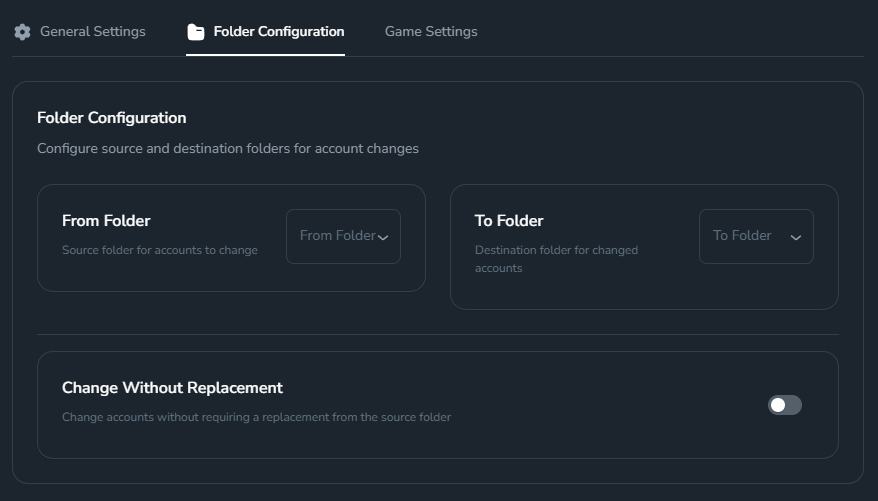 * **From Folder**: folder containing new accounts.
* **To Folder**: destination folder for accounts that have been switched (met your set conditions).
* **Change Without Replacement**: move account to To Folder without taking a new account from From Folder to replace it.
### Game Settings
* **From Folder**: folder containing new accounts.
* **To Folder**: destination folder for accounts that have been switched (met your set conditions).
* **Change Without Replacement**: move account to To Folder without taking a new account from From Folder to replace it.
### Game Settings
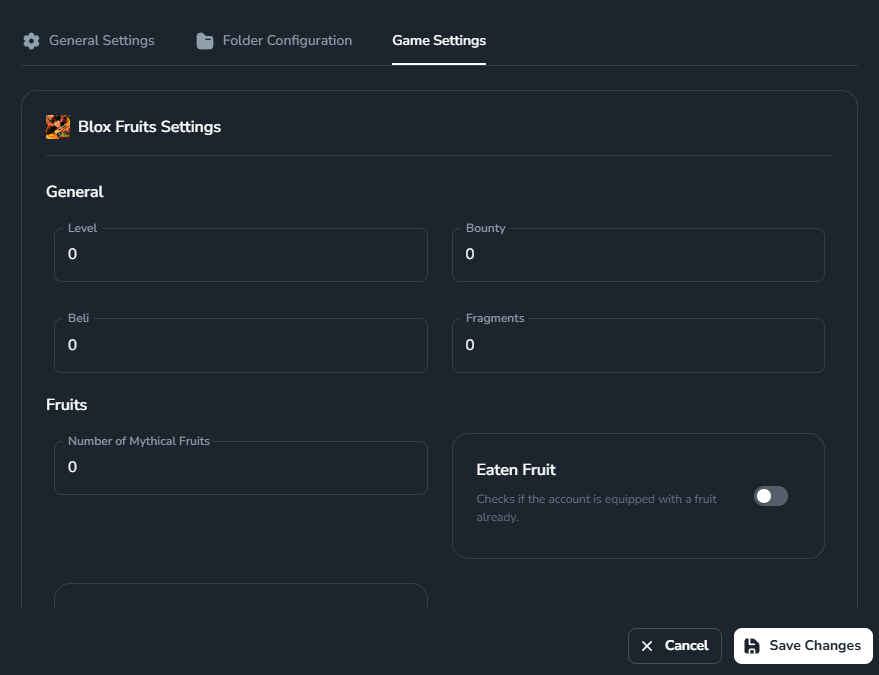 Set conditions (e.g., level, bounty, fragments, etc.) for Auto Change to switch accounts when the current account meets the requirements.
You have now created and configured your Auto Change Config.
Set conditions (e.g., level, bounty, fragments, etc.) for Auto Change to switch accounts when the current account meets the requirements.
You have now created and configured your Auto Change Config.